Complete manual
Every page of the documentation in one document, in reading order. Meant for printing or saving as PDF: use the browser's print function and choose «Save as PDF». Updated on 5 August 2026.
Getting started
What CRAnotify is, how to create the organisation, and what to configure on day one.
What CRAnotify is
CRAnotify is a compliance cockpit for the reporting obligations of Article 14 of the Cyber Resilience Act (Regulation (EU) 2024/2847). It takes an event — a reported vulnerability, a detected incident — and carries it along a traced path: qualification, verdict, pre-filled notification, manual filing on the ENISA platform, with an immutable registry of every decision and when it was taken.
The problem it solves
Art. 14 imposes very short deadlines: 24 hours for the early warning from the moment the manufacturer becomes aware of an actively exploited vulnerability or a serious incident, 72 hours for the update, then a final report. In practice the hard part is not filing: it is reaching the filing with a defensible decision and with proof that it was taken in time. Three things must be done well, under pressure:
- Qualify the event — exploited vulnerability or serious incident? Is the precondition of the obligation actually met?
- Date the awareness, because the deadline runs from there and not from when somebody finally noticed.
- Document the reasoning, because in an inspection what counts is being able to show how you decided, not only what you decided.
CRAnotify holds the three together in one path, with a clock that does not stop and an append-only registry whose alterations are detectable.
What it does
What it does not do
It does not file on your behalf. Transmission to the ENISA Single Reporting Platform and to the CSIRT is an act of the manufacturer and goes through your institutional credentials. CRAnotify prepares the content, takes you to the platform, and records the outcome when you upload the receipt.
- It does not give legal advice. The engine reproduces the structure of Art. 14; responsibility for the qualification stays with whoever signs it.
- It does not decide for you in doubtful cases. When the elements are insufficient, the verdict is «suspended» with a re-check reminder: an honest state beats an invented answer.
- It does not scan for vulnerabilities. It connects to the tools you already use for the bill of materials (see SBOM), but it is not a scanner.
Who it is for
The manufacturer of products with digital elements within the scope of the Regulation: whoever places software or connected devices on the Union market under their own name or trademark. Inside the company, three roles typically use it, matching the configurable roles:
| Who | What they do in CRAnotify | Typical role |
|---|---|---|
| Security / product lead | Qualifies events, runs the triage, prepares the notification and files it. | Administrator or Assessor |
| Engineering team | Receives reports, verifies exploitation, maintains the product register. | Assessor |
| Legal / compliance | Watches the deadlines, consults the registry, produces the defence dossier. | Read-only (with dedicated escalation) |
When the obligations start
The reporting obligations of Art. 14 apply from 11 September 2026; the Regulation's essential requirements follow later. That means the first thing to have ready is not product conformity but the ability to report within 24 hours: escalation chain, intake channel, qualification procedure. That is exactly what this product sets up.
Good practice. Before that date, run at least one fake event end to end in exercise mode. A cold rehearsal reveals the gaps — wrong addresses, unreachable contacts, platform credentials never activated — while finding them is still cheap.
Next step
If you have no account yet: Creating the account and the organisation. If you do: Initial setup.
Risk-class calculator
Before you configure the flow, the first question is a different one: is my product in scope of the Cyber Resilience Act? And in which class? The calculator answers indicatively in four steps, and shows the minimum obligations and the technical file you will need. It is a free public tool at https://cranotify.eu/en/classe-rischio.
Indicative result, not legal advice. The definitive classification is the manufacturer's responsibility and depends on the product's «core functionality». The calculator does not decide for you and uses no artificial intelligence: it is a deterministic decision tree over a map written and verified against the official sources.
The four steps
The classes and what they entail
«Core functionality» matters more than the name
An «important» or «critical» category applies by the product's core functionality, not by an ancillary feature. Integrating a component that would itself be an important product (for example an operating system inside a smartphone) does not make the whole product «important»: what counts is the core functionality of the product as a whole. For borderline cases, record the choice and verify it with an expert.
What it is based on
The category → class map is anchored to the primary sources: Commission Implementing Regulation (EU) 2025/2392, which sets out the technical descriptions of the categories of important and critical products, read together with Annex III (class I and II) and Annex IV of Reg. (EU) 2024/2847. The scope logic follows the Commission guidance on the application of the CRA. Every entry in the map cites its reference point.
Getting the summary
From the result you can have the class summary and the obligations checklist emailed to you (optional, with consent). The result stays visible on screen without leaving any data.
The calculator answers «am I in scope of the CRA?». The triage inside the application answers a different, later question: «does this event trigger the Art. 14 reporting obligation?». Two complementary axes.
Creating the account and the organisation
Every account belongs to an organisation: the container for your cases, products, registry and settings. Whoever signs up from the public form founds a new organisation and becomes its administrator; whoever arrives on an invitation joins an existing one.
Self-service sign-up
Sign-up offers two paths: with an email and password, or with your corporate Google or Microsoft identity. Either way the first administrator — the founder of the new company — is active immediately: no approval, no email confirmation link.
With email and password
- Open https://cranotify.eu/registrazione.
- Give the company name, VAT number (checked against VIES), country and your role in the chain — manufacturer, importer or distributor.
- Give the administrator's name and email and choose a password of at least 10 characters; a strength meter guides you as you type.
- You are in straight away: the application opens the case cockpit with demonstration data.
With Google or Microsoft
The «Sign up with Google» and «Sign up with Microsoft» buttons skip the password: after authenticating with the provider you complete only the company details (company name, VAT number, country, role in the chain). The email is already verified by the provider, the account is created SSO-only, with no password, and you go straight in.
As soon as the organisation is created a welcome email (via AWS SES) goes out with the sign-in link and the first things to do.
Self-service sign-up always founds a new organisation, even when the email domain matches one that already exists: joining an existing group happens by invitation or through company single sign-on, not by signing up. If your administrator has closed open registration, the page says so and you need an invitation.
If the welcome email does not arrive within a few minutes, check the spam folder and your corporate filters on no-reply@cranotify.eu. It is no obstacle anyway: the account is already active and you can sign in at https://cranotify.eu/login. The sign-in and sign-up forms are guarded by an invisible anti-bot check (Cloudflare Turnstile).
Inviting colleagues
From Account area › Company and people › People the administrator invites the other users with an address and a role. The invitee receives a single-use link valid for 7 days that provisions them into your organisation (it does not found a new one).
| Role | What they can do |
|---|---|
| Administrator | Everything: company settings, users, subscription, API, SBOM, alerts, public form. |
| Assessor | Works on cases: triage, verdict, notification, filing. Manages their own profile, password and two-step verification. |
| Read-only | Consults cases, registry and dossiers. Changes nothing. |
The full permission model and the escalation chain are in Users, roles and escalation.
Allowed domains
In Company data you can list the accepted email domains (for example yourcompany.com). The list governs joining the organisation: invitations and single sign-on. Left empty, there is no domain restriction.
Good practice. Fill the list as soon as the organisation is created: it governs who can join by invitation and through company SSO, and keeps the team inside a single organisation with one registry.
The demonstration data
A new organisation starts with a few sample cases and products, useful to understand the interface without waiting for something real to happen. They are recognisable by their invented names and can be archived once they are no longer useful. To rehearse the full flow while producing communications clearly marked as unreal, use exercise mode instead.
After sign-up
The three things to do first, in order: register your products, set the escalation contact, rehearse the flow in exercise mode. They are explained in Initial setup.
Sign-in, SSO and two-step verification
The application answers at https://cranotify.eu. You sign in with an email and password or with your corporate Google or Microsoft identity; two-step verification is per user and is switched on from your own profile.
Signing in with a password
- Enter your email and password on the sign-in page.
- If two-step verification is on, the application asks for the six-digit code from your authenticator app.
- On confirmation the case cockpit opens.
Passwords must be at least 10 characters. They are stored only as a cryptographic digest: nobody, support included, can read one or tell you what it was.
Sign-in, password reset and sign-up attempts are rate-limited per source address. After too many attempts in quick succession the answer becomes «too many requests»: wait a few minutes — it is not an account lock. The sign-in page is also guarded by an invisible anti-bot check (Cloudflare Turnstile), which asks nothing of you when all is normal.
Forgotten password
«Forgot password» on the sign-in page sends a single-use reset link valid for 30 minutes. Once opened, you set the new password; a confirmation email follows. If that confirmation arrives and it was not you, change the password immediately and tell support: somebody has access to your mailbox.
Signing in with Google or Microsoft
When the providers are configured, the sign-in page shows «Continue with Google» and «Continue with Microsoft». There are two distinct paths, and it helps not to confuse them.
- Global social sign-in. You enter the existing account tied to that email address — which must be unique. The provider verifies the identity and you skip the password. If no active account exists for that email, sign-in is refused with «no active account»: social sign-in creates nothing. To found a new company, use sign-up.
- Company SSO (per organisation). Whoever arrives through their organisation's SSO address — the one carrying the organisation slug — is created on first sign-in by just-in-time (JIT) provisioning: the corporate identity's groups are mapped to the application's roles, so everyone lands with the right permissions without a manual invitation.
The allowed domains and the group→role mapping of company SSO must be set before the team signs in: they govern who joins and with which role. Global social sign-in, by contrast, founds no organisation — an unknown email is simply turned away.
Two-step verification (TOTP)
Switch it on from Account area › My account › Security. It is a per-user choice, not an organisation-wide one: everyone protects their own access.
- Press «Enable two-step verification». A text key and an
otpauth://address appear, to be captured with an authenticator app (Google Authenticator, Microsoft Authenticator, 1Password, Aegis…). - Type the six-digit code the app shows, to confirm the capture worked.
- Save the recovery codes that appear at this point: they are shown once and only once.
The recovery codes are shown once. Keep them outside the application — a password manager, a company safe. Each code works once and is the only way back in if you lose the phone. Without codes and without the app, getting back in goes through support and takes verification that is not instant: exactly what you do not want during a 24-hour deadline.
Use the same panel to switch it off. The six-digit code changes every 30 seconds and is accepted with a small clock tolerance; if it is rejected over and over, the phone's time is off — synchronise it.
Active sessions
The same page lists the open sessions with device and location; the current one is marked. Each row can be revoked: revocation takes effect immediately and that device has to sign in again. Changing the password and disabling the account invalidate existing sessions.
Good practice. Review the sessions whenever somebody leaves the company or changes laptop. It takes a minute and is one of the easiest diligence facts to demonstrate.
Signing out and expiry
«Sign out» closes the current session and clears the cookie. Sessions have a limited lifetime anyway: after a period of inactivity you are asked to sign in again. The session cookie travels over HTTPS only in production and is not readable by scripts.
Initial setup
Seven things need doing before the first real report arrives. Together they take about an hour, and they are exactly what the application's setup checklist keeps an eye on.
The list
| # | Step | Where | Why |
|---|---|---|---|
| 1 | Register the products | Products | A case attaches to a product: without the register you cannot fill in the notification. |
| 2 | Set the escalation chain | Account area › Company and people › People | It decides who gets the reminders and when counsel is brought in. |
| 3 | Invite colleagues with roles | Account area › People | No 24-hour process survives on one person. |
| 4 | Publish the public form | Account area › Embedded form | It is the coordinated-disclosure channel: without it, reports land wherever. |
| 5 | Prepare the filing prerequisites | Filing | Institutional credentials cannot be obtained in 24 hours. |
| 6 | Enable two-step verification | Account area › Security | Access to the evidence file must be protected. |
| 7 | Rehearse the flow | Menu › Exercise | It proves all of the above actually works. |
1. Register the products
In Products, enter the products with digital elements you place on the market: name, version, identifiers (serial number, part number, barcode, MAC address where relevant), category, release date and end of the support period. The full field list is in Product register.
Start from what is actually on the Union market, not from the historical catalogue. Four well-kept products beat forty rows copied out of an ERP.
2. The escalation chain
In People you set four addresses with distinct functions:
Use addresses that are watched out of hours. The 24 hours do not pause at night or at weekends: if the contact is a mailbox read only in the office, the chain is already broken.
3. Users and roles
Invite at least a second administrator and the assessors who will run the triage. Give «Read-only» to those who only consult (compliance, outside counsel). See Users, roles and escalation.
4. The public form
In Account area › Embedded form, customise the mail alias, the introductory text and the fields, then copy the <iframe> snippet into your site's security page. The same screen provides the content of the security.txt file to publish at /.well-known/security.txt. Details in Public reporting form.
5. The filing prerequisites
The Filing screen carries a checklist with two entries: an EU Login account enabled for the single reporting platform, and the contact point at the national CSIRT. They are informational ticks — they never block a filing — but resolve them ahead of time, because activating institutional credentials takes days, not hours.
6. Two-step verification
Enable it for every user who can write. Procedure in Sign-in, SSO and two-step verification.
7. The dress rehearsal
Switch on exercise mode and take a fake case all the way to filing. Time it: if it takes more than a couple of hours from report to finished text, the bottleneck is organisational and needs fixing now.
Settings that can wait
How the application is laid out
A sidebar on the left, the content in the middle, and — whenever a case is being worked — the deadline clock always in sight. There are few screens and each one matches a step of the flow.
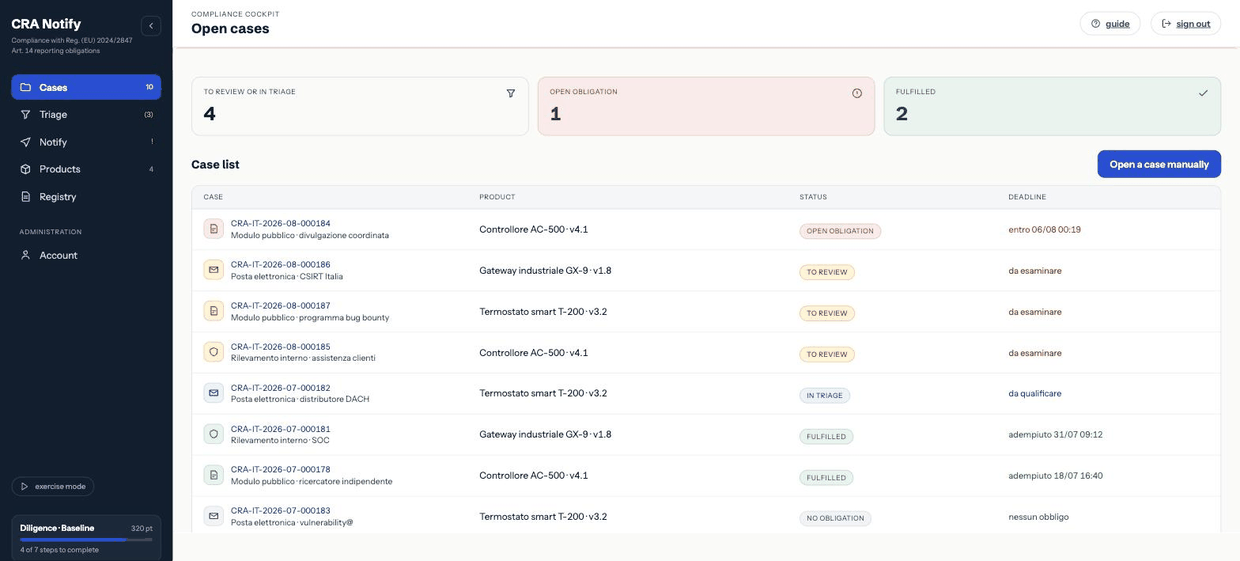
Navigation
| Item | Address | What it is for |
|---|---|---|
| Cases | /casi | The cockpit: every open case with its state and deadline. |
| Triage | /triage-app | The guided qualification of the event, in three steps. |
| Notification | /notifica | The draft of the communication to the authority. |
| Registry | /registro | The activity registry, filterable and exportable. |
| Products | /prodotti | The register of products with digital elements. |
| Account area | /account | Profile, company, subscription, form, API, SBOM, alerts. |
The full address map, with who may open what, is in Address map.
The deadline clock
When a case has a running deadline, the header shows the countdown: time left, moment of awareness, computed expiry and the reference window (24 hours for the early warning). Next to the countdown, a label with an icon states the deadline status: colour supports it, never replaces it:
The countdown ticks in the browser but is anchored to the expiry computed by the server: reloading the page or changing time zone does not move it. The full behaviour is in Phases and deadlines.
The setup checklist
The sidebar carries a card with a level (Baseline, Managed, Solid, Exemplary) and seven steps. It is not a game: these are the seven behaviours that, taken together, evidence a diligent handling of the obligations.
| Step | Counts as done when… |
|---|---|
| First triage | at least one case has been qualified with a recorded outcome. |
| Filed on time | an early warning was filed before its deadline. |
| Users notified | the notice to affected users (Art. 14(8)) was issued and recorded. |
| Upstream chain | a third-party component was reported to its maintainer (Art. 13(6)). |
| SBOM connected | at least two SBOM tools are active. |
| Complete register | at least four products are registered with identifiers. |
| Ready to file | products, roles, reporting alias and prerequisites are configured. |
A step covered by procedures outside CRAnotify can be marked done manually: the indicator measures your organisation, not your use of the software.
The subscription band
A band may appear above the content with the subscription state: trial days left, grace period, or read-only. In grace and read-only, writing is blocked, while reading, the registry and exports stay available — the registry is evidence, not a metered service. See Subscription and billing.
Language and accessibility
The interface is available in Italian and English; the switch is in the public site header and the choice is remembered. The application is keyboard-operable, focus is always visible, contrast meets AA and the layout holds down to 380 pixels wide. The full statement is at https://cranotify.eu/accessibilita.
The exercise marker
With exercise mode on, the header says so and every registry entry produced is marked [esercitazione]. It is how a rehearsal is never mistaken for a real filing.
Compliance flow
From the report received to the filing on the ENISA platform, step by step.
The flow at a glance
An event goes through five steps. Each one produces something verifiable: a state, a reasoned verdict, a text, a receipt, a registry row. The path is always the same, whether the event comes from an outside researcher or from your own detection.
The five steps
- Intake — anything from outside (public form, connectors, API, OSV) becomes an inbound signal (INCOMING); a person promotes it to a case (state new) or disposes of it. A manual entry is born straight as a new case. See Cases: from signal to case.
- Triage — three questions qualify the event and fix the moment of awareness. The clock starts there. See Guided triage.
- Verdict — the engine applies the decision table and states the legal basis, or suspends. See Verdict and legal basis.
- Notification — the draft: the engine-determined fields are already filled, you add the facts. See Notification: the draft.
- Filing — you transmit on the ENISA single reporting platform and upload the receipt into CRAnotify. See Filing.
After the first filing the case is not closed: the 72-hour update and the final report remain, each with its own draft and its own receipt. See Phases and deadlines.
The whole picture
report received
  ├─ portal/connectors/API/OSV → SIGNAL (INCOMING) → promoted → «new»
  └─ manual entry                                            → «new»
                                                      │
                                                TRIAGE (3 steps)
                                                      │
                        ┌───────────────┬─────────────┴────────┬────────────────┐
                     no obligation    suspended            obligation       obligation
                     → archived     → re-check           Art. 14(2)(a)   Art. 14(4)(a)
                                                              └─────────┬─────────┘
                                                              NOTIFICATION (draft)
                                                                        │
                                                        FILING · early warning (24 h)
                                                                        │  ENISA receipt
                                                                state «in progress»
                                                                        │
                                                          FILING · update (72 h)
                                                                        │
                                                          FILING · final report
                                                                        │
                                                              state «fulfilled»
What remains as evidence
Every step writes a row into the activity registry, chained to the previous one. At the end of the path you hold, per case:
- the complete chronology, with the author and moment of every act;
- the verdicts recorded in sequence with their justification — including those later superseded;
- the receipts issued by the platform for each phase, with any protocol number;
- the report's attachments, distinguishing verified from unverified;
- the printable defence dossier that gathers them.
Who does what
| Step | Minimum role | Note |
|---|---|---|
| Promote a signal to a case | Assessor | An unpromoted signal does not enter the flow and starts no clock. |
| Run the triage | Assessor | The author stays on the record. |
| File and upload the receipt | Assessor | The platform credentials are the company's, not CRAnotify's. |
| Change the escalation recipients | Administrator | An administrative action, recorded. |
How long it really takes
The triage takes minutes; what consumes the 24 hours is everything around it: reaching whoever can answer the exploitation question, gathering technical elements, obtaining internal approval of the text. That is why configuring the escalation and rehearsing in exercise mode are worth more than any feature of the product.
Good practice. Open the case as soon as the report arrives, before you know whether an obligation exists. Triage can be suspended; the time lost before opening the case cannot be recovered.
Actions: the work to be done
The Actions inbox lists the things somebody has to do, with the object they act on, the reason they exist and who is holding them. Open it from Actions in the menu and empty it by closing each row with a gesture that stays on the record. It is not a list of news: it is the work queue.
Why it is not a notification
“Dependency-Track synchronisation completed” is news: you read it and forget it. “Review three new matches” is an action: it has an owner, an object, often a deadline, and it ends in a recorded decision. Two different things, kept in two different places.
Keeping them together looks convenient and is not: the second gets lost inside the first, and that is the most common way of missing a 24-hour deadline without anyone having done anything wrong. News stays in Notifications; this page holds only what needs a gesture.
An action always says “somebody must assess whether the duty applies”, never “the duty applies”. The verdict comes out of triage, with a person answering the questions; the queue leads to the work, it does not conclude it.
Where they come from
Actions are not created by hand. They arrive by three routes, and none of the three writes a value on your behalf:
The same work is never duplicated: while a condition persists, the action representing it stays a single row and is updated in place. Different thresholds stay different warnings — “90 days left” and “30 days left” are two things to know, not the same thing said twice.
Exercise data and archived products never enter the queue.
The deadline comes from the case, not from the action
When an action is attached to a case, the legal deadline of that case is shown beside it. That deadline is not stored on the action: it is read from the engine every time you open the page. If somebody corrects the moment of awareness, the deadline shown here changes with it, because it is always the same single value — the one on the case.
When an action is not attached to a case, no deadline is shown. None is invented as an “operational” reminder: on screen an invented deadline would be indistinguishable from a legal one, and the difference between the two is exactly what matters. If you want an internal target date, use assignment and your own team tooling.
In practice. The number to look at to know how much time is left is always the one on the case page (Phases and deadlines). The action queue repeats it for convenience; it does not decide it.
Priority and states
Priority orders the queue: critical is reserved for what genuinely has a clock running, then high, normal, low. The states say where the work stands, not whether you are compliant:
| State | Meaning |
|---|---|
| Open | Nobody has picked it up yet. |
| In review | Somebody is working on it. |
| Waiting for supplier / owner / evidence | Blocked on somebody specific. A “waiting” that does not name who is being waited for is the box where things sit for months. |
| Completed | The work was done. |
| Dismissed | It was decided that it should not be done, and the why is written down. |
Closing an action
An action leaves the queue in three ways, and the three are never conflated:
- Completed. The work was done. Your identity is required: who completed it, and when, stays on the record.
- Dismissed, with a mandatory reason. You decide there was nothing to do. The reason field is not optional and will not take a single word. An action dismissed without a reason, read back a year later by an authority, is indistinguishable from an action that was forgotten — and the difference between the two is the difference between diligence and negligence.
- Lapsed. The observed condition is gone: the bill of materials arrived, the role was confirmed elsewhere. Here the system withdraws a proposal of its own, and only for what it opened itself and nobody has picked up. As soon as a person assigns it or takes it into review, that action is theirs and they close it.
A closed action can be reopened, and that too requires a reason. The previous version is not erased: it stays in the history, next to the new one.
Every assignment, state change, completion, dismissal and reopening leaves a line in the activity registry, with the author and the instant. That is why the reason is mandatory: it is for whoever reads it back, not for whoever writes it.
Assigning and picking up
An action with no assignee belongs to everyone and therefore to no one. From the queue you filter by assigned to me, unassigned or all; from the detail page you assign it to a person or take it yourself. Assigning is a gesture too: who assigned is recorded alongside who was assigned.
The numbers at the top
Above the queue there are counts — open, critical, to review, waiting, unassigned. They are counts, not a score: each one can be recounted by hand from the list, and none of them draws a conclusion about your legal position under the CRA. There is no compliance percentage in CRAnotify, here or anywhere else.
Cases: from signal to case
A case is the unit of work: one qualified event, with its product, its chronology, its attachments and — if an obligation exists — its deadlines. Every case carries an unpredictable identifier of the form CRA-IT-2026-123456, drawn at random: the number does not disclose how many events you have had. A case does not appear on its own from an external event: it comes from a human decision.
Where a case comes from
/signals), not a case. A person reviews it and, if it is pertinent, promotes it to a case: only then does the case exist and awareness get set.Signal ≠ case. Receiving an event starts no legal clock: there is no awareness until you promote. It is promotion — or manual entry — that creates the case and sets the «moment of awareness». The signal lifecycle is detailed in Public form and in the INCOMING queue.
Entering a case by hand
The screen asks for the minimum needed to reconstruct where the information came from:
| Field | What to write |
|---|---|
| Product | The product with digital elements involved, picked from the register. |
| Channel | How it arrived: form, email, internal. |
| Reference | Your own external identifier: ticket number, protocol, CVE identifier if already known. |
| Sender and contact | Who reported it and how to reach them. This is what lets you give the reporter feedback. |
| Subject and text | The report exactly as it arrived. Pasting the original beats summarising it. |
| Attachments | Up to three files (max 5 MB each). Uploaded by an authenticated user, they count as verified. |
Good practice. Paste the full text of the report, email headers included. Reconstructing the «moment of awareness» in an inspection rests on exactly that detail.
Disposing of an inbound signal
A signal arriving from outside does not enter the flow automatically. In the INCOMING queue (/signals) a person reviews it and chooses one disposition:
- Promote — the signal is a real, pertinent event: it creates a case in state new, with the awareness you declare at that moment. The act stays on the record.
- Attach — it concerns a case that already exists: you link it to that case without creating a new one, and the signal's attachments follow.
- Duplicate / Informational / Dismiss — it does not deserve its own case (already known, for information only, or spam or not pertinent): the signal is closed with the justification preserved. It is not deleted: a rejection is also a decision you may need to show.
Disposing of a signal is a security control, not a formality: it keeps untrusted content (and its attachments) out of the evidence file until a person has looked at it, and stops an event from starting the legal clocks with nobody having decided so. See Quarantine and anti-abuse defences.
Case states
| State | Meaning | Next step |
|---|---|---|
| new | Case created (promoted signal or manual entry), to be qualified. | Start the triage. |
| triage | Qualification under way. | Complete the three steps. |
| obligation | Triage found a duty to notify: the clock is running. | Prepare the notification and file. |
| in progress | Early warning filed; update and final report remain. | File the later phases. |
| fulfilled | Final report filed: the path is complete. | Preserve the dossier. |
| archived | No obligation, or a case archived without triage. | None; it stays consultable. |
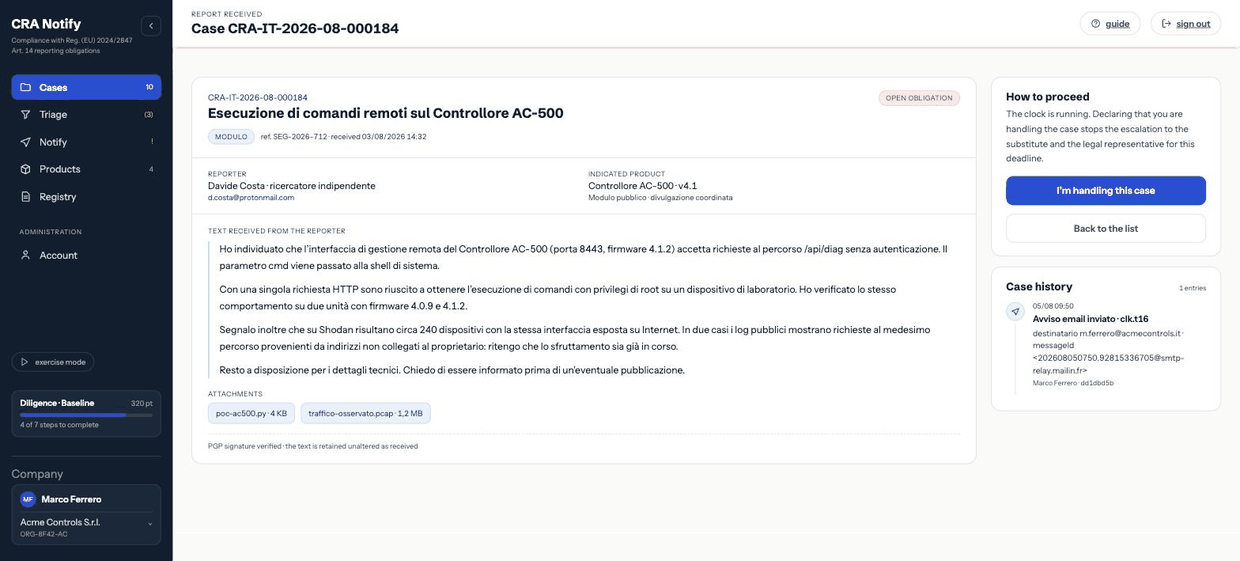
The case screen
The detail gathers on one page: the report as it arrived, the attachments with their verification state, the chronology of actions on the case, the current phase with its deadline, and the available actions. Opening a case also updates its «last opened» marker, which feeds the no-response reminder (see Email: families and recipients).
Taking charge
When a case is in obligation, a Take charge button appears. It declares that the contact is handling it: escalation towards the deputy and the legal representative is suspended for that deadline, and the declaration stays on the record. Use it — it stops counsel receiving alerts about something already in hand.
Archiving without triage
An obviously irrelevant case can be archived without qualification. That too leaves a registry row with its justification: choosing not to assess is itself a decision.
Attachments
Up to three files per case. Attachments uploaded by authenticated users count as verified; those arriving from the public portal stay unverified and are treated as untrusted material: they are only downloaded (never rendered in the page) and are reachable only by users of your organisation.
Guided triage
Triage qualifies the event in three steps. It is not a questionnaire: every answer has a precise effect on the verdict and on the deadline, and stays on the record with the name of whoever gave it. It starts from the case detail with «Start the triage» and continues at /triage-app.
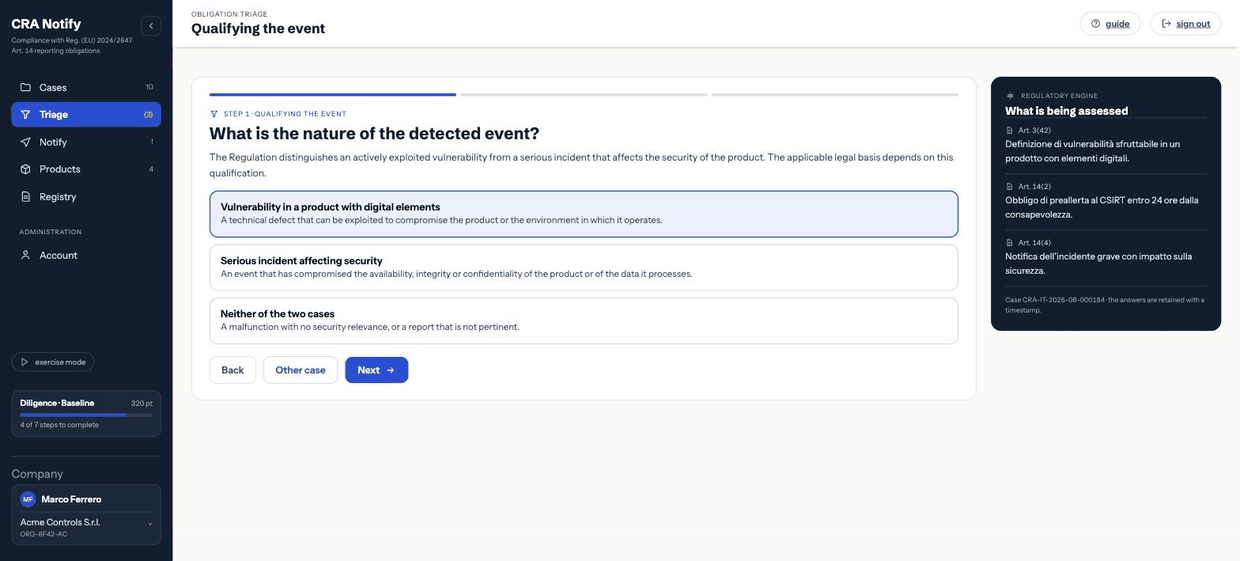
Step 1 · Qualifying the event
What is the nature of the detected event? The Regulation distinguishes an actively exploited vulnerability from a serious incident that affects the security of the product. The applicable legal basis depends on this qualification.
| Option | When to choose it |
|---|---|
| Vulnerability in a product with digital elements | There is a technical defect that can be exploited to compromise the product or the environment in which it operates. |
| Serious incident affecting security | Something has already happened that compromised the availability, integrity or confidentiality of the product or of the data it processes. |
| Neither of the two | A malfunction with no security relevance, or a report that is not pertinent. Leads straight to «no obligation». |
If the event is both a vulnerability and an incident (an exploited flaw that caused an outage), qualify it by what you intend to notify first and note the rest in the description. The two legal bases carry different final-report deadlines: see Phases and deadlines.
Step 2 · The precondition of the obligation
The second question changes depending on the answer to the first.
If you chose «vulnerability»
Is there evidence of active exploitation? A reported vulnerability is not the same as an exploited one: the obligation arises where there are elements attesting to actual use by third parties.
- Yes, documented evidence of actual use — records of unauthorised execution, an exploit in circulation, confirmation from a reliable source.
- No, the vulnerability has only been reported — disclosure by a researcher, no indication of exploitation under way.
- Insufficient elements to decide — the analysis is under way: the assessment is suspended and resumed with a reminder.
If you chose «serious incident»
Did the event affect the product's ability to protect availability, integrity or confidentiality? The obligation arises when the event actually compromised a security property of the product or of the data it processes; a mere anomaly, without impact on security, does not meet the precondition.
- Yes, compromised — service disruption, alteration or unauthorised access confirmed.
- No, no impact on security — a malfunction or disruption without any compromise of the security properties.
- Insufficient elements to decide — assessment suspended with a reminder.
«Insufficient elements» is not an escape hatch: it is the correct answer when you genuinely do not know. It produces a suspended verdict with a re-check reminder, and the suspension itself is documented. Answering «no» to close the file, and later discovering that exploitation was real, is the worst position you can be in.
Step 3 · When the deadline starts
From when did the company become aware of it? The 24-hour deadline runs from the moment of awareness. Give the documentable time: the first receipt of the report or the first internal finding.
From here the clock starts, computing expiry at 24 hours.
Changing the moment of awareness
It can be corrected later, if it emerges that the company knew earlier. The change requires a justification, recomputes the expiry immediately, stays on the record with the old and new values, and generates an alert to the contact and to the legal representative. It is deliberately conspicuous: moving a deadline is an act that must be explainable.
Concluding the triage
After the three steps the engine applies the decision table and produces the verdict. The triage:
- records the start and the conclusion in the registry, with the author;
- appends the verdict to the case's verdict history — the sequence is cumulative: a new assessment does not erase the previous one;
- moves the case into the state matching the outcome;
- sends the outcome (obligation or no obligation) to the contact.
A triage can be repeated as often as needed: when new elements arrive, restart it from the case detail. The verdict sequence will show how the assessment evolved, which is precisely what you need to demonstrate.
What «suspended» means in practice
The case stays under assessment and a re-check reminder is scheduled for the contact. Meanwhile the early-warning clock keeps showing: the suspension concerns your ability to decide, not the running of the statutory deadline.
Verdict and legal basis
The verdict is the mechanical consequence of the two qualification answers. The table is explicit and hides no grey areas: the same answers always give the same outcome, which is why the reasoning is defensible.
The decision table
| Step 1 · nature | Step 2 · precondition | Verdict | Legal basis |
|---|---|---|---|
| Neither of the two | — | no obligation | — |
| Vulnerability | Documented active exploitation | obligation | Art. 14(2)(a) |
| Vulnerability | Only reported, no exploitation | no obligation | — |
| Vulnerability | Insufficient elements | suspended | to be reassessed |
| Serious incident | Security properties compromised | obligation (incident) | Art. 14(4)(a) |
| Serious incident | No impact on security | no obligation | — |
| Serious incident | Insufficient elements | suspended | to be reassessed |
Neither branch produces an obligation without a confirmed answer at step two: qualifying an event as a «serious incident» is not by itself enough to trigger the notification. The precondition has to be established.
Obligation to notify
The case moves to obligation, the 24-hour clock is running, and the verdict screen states:
- the applicable legal basis — Art. 14(2)(a) for an exploited vulnerability, Art. 14(4)(a) for a serious incident;
- the recipient — the national CSIRT and ENISA through the single reporting platform;
- the deadline computed from the moment of awareness;
- the next actions: prepare the notification, notify affected users, report upstream if the defect sits in a third-party component.
The outcome alert goes to the contact, and the sequence of clock reminders is armed.
No obligation
The case is archived with the reasoned verdict. It is not a deletion: it stays consultable and the verdict stays in the registry. In a later inspection, being able to show that the event was examined and found out of scope is worth as much as a filed notification.
Good practice. In the justification write the decisive element, not the conclusion: «no known exploit, PoC does not work on supported versions, confirmed with the researcher» is useful; «not applicable» is not.
Suspended
The case stays open under assessment and a re-check reminder is set for the contact. Resume as soon as the missing element arrives: confirmation of exploitation, the team's finding, the reporter's answer.
Suspension does not suspend the statutory deadline. If the precondition is later confirmed, the 24 hours remain anchored to the original moment of awareness, not to when you resolved the doubt. Treat a suspension as a race against time, not as a pause.
The verdict history
Every concluded triage appends a row to the case history: moment, answers given, outcome, legal basis, moment of awareness applied, author and justification. Rows accumulate, they do not replace each other. This is the reconstruction of how the assessment evolved as information arrived — the evidence that yours was active management and not an omission.
After the verdict
With an established obligation the next step is the notification draft. If the defect sits in a third-party component, or there are users to warn, see also User notice and upstream chain: these are duties distinct from the notification to the authority and are tracked separately.
Notification: the draft
The Notification screen prepares the content of the communication to the authority. Part of it is already written because it follows from the verdict; the rest are the facts, which only you know. Everything you type here carries into the later phases, so the 72-hour update does not start from a blank page.
What the engine decides
These fields cannot be edited, and it is good that they cannot: they are the consequence of the triage.
What you write
Nature of the event
What happened, in technical and verifiable terms. Worth including: the component or function affected, the versions involved, the attack vector, the CVE identifier if assigned, and — for an exploited vulnerability — the elements from which exploitation follows. Avoid unsupported severity judgements: facts are what is needed here.
Measures taken
What you have already done and what you are doing: temporary mitigations, guidance given to customers, functions disabled, expected timing of the fix. If at early-warning time you have no measure yet, say so: «analysis under way, mitigation expected by …» is a legitimate answer within 24 hours and beats an empty field.
Contact person
The person the authority can reach: name, role, email and a phone that is answered. It must be somebody who actually responds — out of hours too, in an active phase.
Good practice. Prepare three model texts in advance (exploited vulnerability, incident with outage, incident with data exposure) and keep them handy. At three in the morning, the difference between filing on time and missing the deadline is the time spent writing the first paragraph.
Preview and coherence
The screen shows the document as it will read, visually distinguishing engine-determined fields from the ones you filled in. Check before proceeding:
- the product is the right one (name and version match the register);
- the legal basis matches the nature of the event as you qualified it;
- the moment of awareness and the expiry are the ones you intend to defend;
- the contact is reachable now, not in general.
Saving the draft
The draft is saved with the case and stays available: you can come back to it, have a colleague read it, resume after an interruption. Each phase of the obligation (early warning, update, final) keeps its own draft, so the three texts stay distinct and reconstructable.
The draft is not transmitted to anyone: CRAnotify sends nothing to the authority. The next step, filing, happens on the ENISA platform with your own credentials.
What not to put in the draft
- Credentials, keys or tokens, not even revoked or example ones.
- Unnecessary personal data: if the case involved customer data, describe categories and volumes, not the individuals.
- Working exploits. Describe the vector; do not supply the weapon.
Next step
With the draft ready, go to Filing on the ENISA platform. Remember that in CRAnotify the filing counts as done only once you upload the receipt issued by the platform.
Filing on the ENISA platform
Filing is the only step that happens outside CRAnotify: the communication is transmitted on the Single Reporting Platform with your company's institutional credentials. CRAnotify takes you there with the text ready and records the outcome when you upload the receipt you obtain.
Why we do not file for you
The Art. 14 report is an act of the manufacturer, engaging its responsibility and going through its digital identity (EU Login and the authorisations held with the national CSIRT). Delegating it to a supplier would insert a link you could not prove you control. What we can guarantee — and what an inspection needs — is the evidence of what was filed and when.
Prerequisites
The screen shows a checklist with two entries:
The ticks are informational: they never block a filing. They exist so you do not reach the 24-hour mark discovering the credentials are missing. They are also one of the conditions of the «Ready to file» step of the setup checklist.
The procedure
- Check the fields summarised on the screen: legal basis, type of communication, recipients, product, nature, measures, contact.
- Open the platform from the link on the page and transmit the communication with your own credentials.
- Download the receipt of the filing from the platform (PDF, image, or the confirmation email saved as
.eml). - Return to CRAnotify, upload the receipt and — if the platform assigned one — enter the protocol number.
- Confirm. The case changes state and the next phase opens.
The receipt is mandatory
Without the receipt file the filing is not recorded and the case state stays unchanged. This is not arbitrary rigidity: a filing that is claimed but not evidenced will not defend you in an inspection. Accepted formats: PDF, PNG, JPEG, .eml, up to 10 MB.
The file is stored with the case, tied to the phase it belongs to, and appears in the defence dossier together with the upload moment and the protocol number.
These are three distinct states: packaged is not transmitted, and transmitted is not acknowledged. Generating or packaging a PDF is not in itself a filing or an acknowledgement; only uploading the real receipt — a file stored write-once in the vault, with its protocol — records that the filing happened. Nothing is ever sent to the authority automatically.
What happens on confirmation
| Phase filed | The case moves to… | Deadlines that open |
|---|---|---|
| Early warning | in progress | The 72-hour update. For a serious incident also the final report (one month); for a vulnerability the final report is anchored to the corrective measure. |
| 72-hour update | in progress, phase «final report» | For a vulnerability, this is where you state the date the corrective measure became available: the final-report deadline becomes that date plus 14 days. |
| Final report | fulfilled | None: the path is complete. |
Each confirmation writes a registry row with the legal basis, the phase, the receipt file name and any protocol number, and sends the alert to the contacts (and to the legal representative, if they opted in).
Mind what «in progress» means. Filing the early warning does not close the obligation: the «fulfilled» state arrives only with the final report. It is a distinction that matters in audits.
If the upload is rejected
| Message | Cause | Fix |
|---|---|---|
| «Attach the receipt…» | No file selected. | Select the file downloaded from the platform. |
| «Invalid receipt» | Format not allowed, or a corrupt file. | Use PDF, PNG, JPEG or .eml. A PDF print of the confirmation page is fine. |
| «The upload is too large» | Over 10 MB. | Recompress the PDF or save only the confirmation page. |
After filing
The confirmation screen recalls the duties that remain — completing the information requested by the authority, updates, and preserving the evidence — and gives access to the dossier. If you have not done so yet, this is the moment to consider the notice to affected users.
Phases and deadlines
The Art. 14 obligation is not discharged with one communication: there are three, in sequence, each with its own deadline. CRAnotify keeps a clock for the current phase and opens the next one when the previous is filed.
The three phases
| Phase | Deadline | Runs from |
|---|---|---|
| Early warning | 24 hours | The moment of awareness fixed during triage. |
| Update | 72 hours | The filing of the early warning. |
| Final report | See below: it depends on the nature of the event. | The filing of the update, with a different anchor for vulnerabilities and incidents. |
The final report
This is deliberate: showing an invented countdown for a deadline that depends on a future event would be worse than showing none. The availability date is entered when filing the 72-hour update; from then the expiry appears and the re-anchoring stays on the record.
How the clock works
The clock shows time left, the moment of awareness, the computed expiry and the reference window of the current phase. The countdown ticks in the browser but is anchored to the expiry computed by the server: reloading, changing device or changing time zone does not move it.
Automatic reminders
For the current phase the scheduler evaluates the open deadlines periodically and sends alerts to the escalation chain. Each alert is sent once per case, phase and recipient, and leaves a registry row.
| Moment | Who receives it | Why |
|---|---|---|
| Clock started | Contact, deputy | The deadline is running: everyone should know at once. |
| 16 hours left | Contact | First reminder, still in time to organise. |
| 4 hours left | Contact, deputy | The window narrows: the deputy comes in. |
| 1 hour left | Contact, deputy, legal representative | Real risk of missing it: counsel must know before, not after. |
| No response on the case | Contact, deputy, counsel | Nobody has opened the case for too long while a deadline was running. |
| Deadline missed | Contact, deputy, counsel | An overrun is documented, not hidden. |
| Re-check reminder | Contact | A «suspended» verdict is still waiting for elements. |
Declaring taking charge on the case suspends escalation towards the deputy and counsel for that deadline: use it when the contact really is on it.
Time zones and moments
Moments are stored in UTC and displayed in Italian local time; in the registry they appear as DD/MM HH:MM. The count is in whole hours from the moment of awareness: 24 hours from an event at 22:30 expire at 22:30 the next day, not at the end of the working day.
The 24 hours know nothing of weekends or public holidays. If the named contact cannot be reached on a Saturday, the cover does not exist: revise the escalation chain, not the clock.
If the moment of awareness changes
Correcting the moment of awareness immediately recomputes the early-warning expiry, requires a justification, stays on the record with old and new values, and generates an alert to the contact and the legal representative. If the shift puts the expiry in the past, the clock reads «expired» at once: that is information, not a software failure.
After fulfilment
Once the final report is filed, the case moves to fulfilled and has no running deadlines. The evidence remains: registry, receipts and dossier. An alert reminds you when the end of the dossier's retention period approaches (see Personal data and retention).
User notice and upstream chain
Alongside the notification to the authority, the Regulation provides for two duties towards other recipients: informing affected users, and reporting to the maintainer a defect that sits in a third-party component. CRAnotify treats them as distinct activities, each with its own trace in the registry.
Notice to affected users · Art. 14(8)
Where an event affects the security of the product, the manufacturer informs the users of the product — and, where appropriate, all users — of the event and of the corrective or mitigating measures they can take.
The Notify users screen (reached from the filing path) lets you:
- choose the audience: registered users, customers and distributors, all affected parties;
- start from a base text already set out, to adapt to the case;
- record the notice as issued, with its audience and moment.
CRAnotify does not send the notice to your customers: distribution happens through your own channels (security advisories, customer emails, release notes, product portal). What is recorded here is that it was done — which is what has to be demonstrated later.
Good practice. Always state in the notice: product and versions affected, what can happen, what the user must do now, and when the fix arrives. A notice that describes the problem without saying what to do only generates support calls.
Report to the maintainer · Art. 13(6)
Where the vulnerability concerns a third-party component included in the product — an open-source library, a supplier module — the manufacturer reports it to the person or entity maintaining it.
The Upstream report screen lists the components recorded in the product's bill of materials (see Product register), offers a base text and records that the report was made.
- Report through the security channel the project declares (
SECURITY.md,security.txt, private advisories), not a public one. - Agree a coordinated disclosure window before publishing details.
- Keep the correspondence: it is the evidence that the upstream chain was activated.
In what order
The notification to the authority has the tightest deadlines and takes precedence. The other two follow, but do not wait for the final report: the user notice is more useful the earlier it lands, and the upstream report is often the precondition for the fix to exist at all.
awareness ──24 h──▶ early warning to the authority
      │
      ├─▶ notice to affected users        (Art. 14(8), without undue delay)
      └─▶ report to the upstream maintainer (Art. 13(6), as soon as identified)
What stays on the record
| Act | Registry row | Type |
|---|---|---|
| User notice recorded | «Notice to affected users recorded», with the audience | notification |
| Notice reopened | «Notice to affected users reopened» | notification |
| Upstream report recorded | «Report to the maintainer recorded», referencing the components | notification |
Both activities count towards the setup checklist: they are two of its seven steps.
Not to be confused
The notice to users does not replace the notification to the authority, and the notification to the authority does not replace the notice to users. They are distinct duties with different recipients and purposes: discharging only one leaves the other open.
CRA assistant
The CRA assistant is a compliance copilot: it is available on every dashboard page and works alongside you as you fill things in — it explains, guides and cites the articles of the Cyber Resilience Act. It runs on AWS Bedrock (Claude) and knows the context of the page you are on. It stays advisory: it orients, but it does not qualify events, compute deadlines or decide whether an obligation exists — those stay with the deterministic engine and with you. Besides answering in the chat window, it helps you write: it rephrases, summarises, translates, drafts a user notice.
The available tasks
| Task | What it produces |
|---|---|
| Rephrase | Rewrites the supplied text clearly, professionally and concisely, without adding facts. |
| Summarise | Condenses a report into a structured case summary (facts, product, potential impact), without qualifying the obligation or stating deadlines. |
| Translate | Translates between Italian and English, keeping technical terms and legal references unchanged. |
| Draft a user notice | Prepares a communication to users from the facts supplied, in a sober, non-alarming tone. |
What it will not do, by construction
- It does not set the triage verdict or the legal basis: those come out of the decision table, not out of a language model.
- It does not set or move deadlines and moments of awareness.
- It does not file, does not send communications, does not change a case state.
- It does not answer outside its perimeter: if the request is not about Cyber Resilience Act compliance and related texts, it declines.
Every answer is a draft to review: it has no legal value until a person adopts it. The legal references the model cites are checked against the corpus of guidance on the Regulation it is grounded on; citations that are not supported are flagged along with the draft.
Using it well
- Start from facts already written: paste the report, the notes, the rough draft. The assistant rewrites; it does not invent the content.
- Ask for one task at a time: the summary first, then the rephrasing of the final text.
- Read it back and correct: product names, versions, dates and legal references must always be checked.
- Move the approved text into the notification draft or the user notice.
Good practice. Use the assistant for form when time is short (translating a notice, cleaning up a text written in a hurry at three in the morning) and never for substance. Qualifying the event is the part that defends you: that one is reasoned.
Data and confidentiality
- The model, served through AWS Bedrock, receives the text you provide plus the context of the page you are working on (the section, the case or the product open). The whole registry or every product record is never sent in bulk.
- Do not paste credentials, keys, unnecessary third-party personal data or working exploits.
- Every generation leaves a row in the activity registry (task and model used), so use of the tool is traceable.
Quotas and availability
The chat window
The chat panel is available on every dashboard page and answers questions about using the product and about compliance, taking into account the context of the page you are on — the section, the case or the product open. The same perimeter and the same quotas apply. It is meant for a specific question while you work, not for extended advice: for an answer that commits somebody, there is support.
Registry and evidence
The activity registry, its integrity, the defence dossier, and reconstruction as of a date.
Activity registry
The registry is the organisation's book of acts: every decision, communication and relevant setting leaves a row with its moment, author and references. It is the core of the defence: before an authority, what counts is being able to show what was done and when — not remembering it.
What is recorded
| Type | Example events |
|---|---|
| report | Report received from the public portal, case entered manually. |
| assessment | Triage started and concluded, verdict, acceptance or rejection of a report, taking charge, archiving, change of the moment of awareness. |
| notification | Filing of the early warning, update and final report; user notice; report to the maintainer; dispatch of operational alerts. |
| administration | Changes to company data, users, escalation, API keys, SBOM integrations, alert channels, public form, account security. |
Each row carries: a short identifier, the moment, the type, the case it refers to, the author, the description of the event, and references (legal basis, receipt name, recipients…).
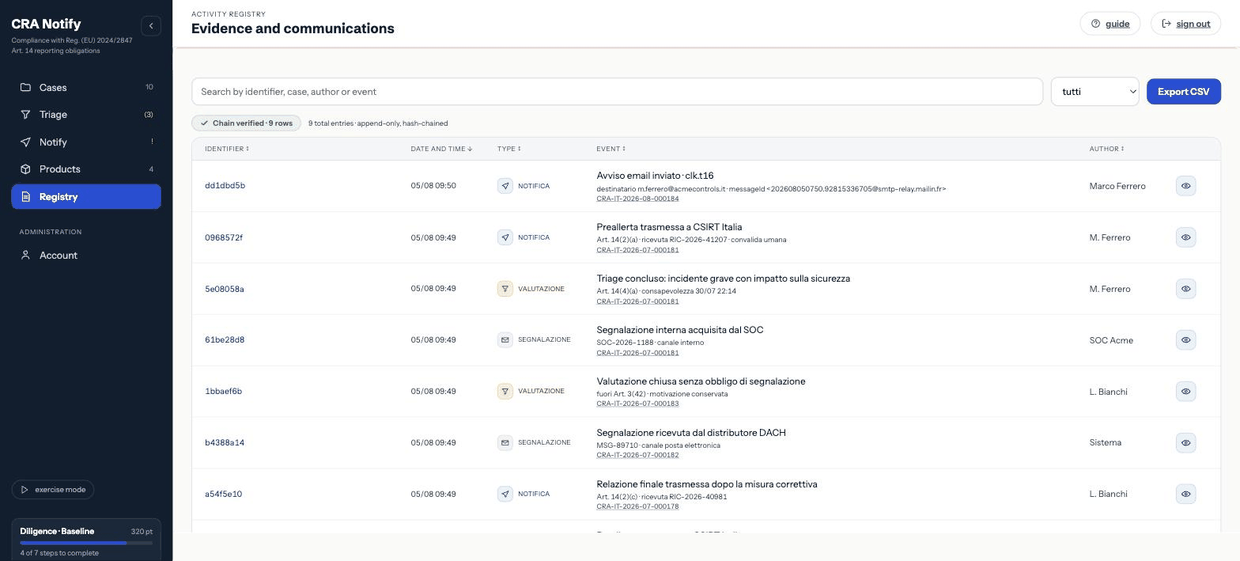
Browsing and filtering
- Filter by type — all, report, assessment, notification.
- Text search — across description, references and case number.
- Sorting — by date, identifier, type, event or author, ascending or descending.
From a case detail you see only that case's chronology, which is often the most useful view while working.
Exporting to CSV
The export button produces a CSV that respects the active filters. The columns are:
id, timestamp, tipo, caso, autore, evento, riferimenti, hash, prev_hashThe file is UTF-8 with a byte-order mark, so it opens correctly in Excel too. The last two columns are the digests of the integrity chain: they are what lets a third party verify the export without access to the system.
Good practice. Export the registry whenever a case closes and archive it where you keep contractual evidence. The export is always available, even if the subscription has lapsed or is read-only.
Why alterations are detectable
Rows are appended, never corrected or removed. If an assessment was wrong, record a new one: the sequence will show the error and the correction, which is precisely what evidences active management. A registry that can be rewritten afterwards would prove nothing — and the hash chain makes any tampering immediately visible.
Exercise entries
With exercise mode on, every row produced is prefixed with [esercitazione]. They stay in the registry (a rehearsal is itself evidence of diligence) but are never confused with real filings.
The author of a row
The author is the user who performed the act. Rows generated by the system — a scheduled reminder, for instance — carry their automatic origin. If a row shows a dash, the action happened without an identifiable user (typically a scheduler): normal for alerts, not normal for a filing.
Retention
The registry is kept for the whole retention period of the dossier and is not deleted by a personal-data deletion request: it is documentation of regulatory compliance. Details in Personal data and retention.
Registry integrity
Every registry row contains the cryptographic digest of the previous one. The result is a chain: modifying, inserting or deleting a row makes every later row inconsistent, and the check reports exactly where the break is.
How it works
When a row is written, the system computes a SHA-256 digest over canonical content comprising:
- the digest of the previous row of the same organisation (the first row anchors to an initial value tied to the organisation code);
- the exact moment in canonical form;
- type, case, author, description and references.
row 1:  hash₁ = H( "genesis:ORG-…" ‖ ts₁ ‖ type₁ ‖ case₁ ‖ author₁ ‖ text₁ ‖ meta₁ )
row 2:  hash₂ = H( hash₁           ‖ ts₂ ‖ type₂ ‖ case₂ ‖ author₂ ‖ text₂ ‖ meta₂ )
row 3:  hash₃ = H( hash₂           ‖ …                                            )
The short identifier shown in the interface (eight characters) is the prefix of the row's digest: convenient to quote in a message and unambiguous about which row it means.
Chains are per organisation: your sequence is independent of anyone else's, and no other organisation's data enters the computation.
The check
The registry page shows the result of the check: how many rows were verified and the overall outcome. The check recomputes the whole chain and compares every digest with the stored one.
If the chain is broken
This is not something to ignore, nor to «fix» yourself. There are few possible causes and they must be told apart before acting.
- Export the full CSV immediately, with no filters: it carries the digests and freezes the current state as evidence.
- Change nothing in the registry and do not attempt to rebuild rows.
- Open a support request under «Technical problem», quoting the number of the first inconsistent row and attaching the CSV.
- Note the event in your own security records: if somebody tampered with the data, the discovery and the response are themselves facts to document.
Typical causes, in order of frequency: a partial restore from a misaligned backup; a manual intervention on the database; an interrupted migration. A hostile alteration is rare, but it is precisely what the mechanism exists to make visible.
What it proves (and what it does not)
This is not a timestamp certified by a third party: it is internal evidence of non-alteration. If your context requires a qualified timestamp, apply it to the periodic export of the registry, which is a self-contained file.
Having a third party verify the export
The CSV carries, for each row, the fields that enter the computation plus hash and prev_hash. A consultant or an expert witness can recompute the chain independently: start from the initial value tied to the organisation code, concatenate the fields in the documented order, and check that every digest matches. No access to our systems is needed.
Defence dossier
The dossier gathers everything about one case into a single document: identification, deadlines, filing receipts, attachments and the full chronology. It is the document you hand to an authority, to a lawyer or to an auditor.
What it contains
How to generate it
Open it from the case being worked (or from the registry) under Dossier. The document is laid out for print: use the browser's print function and save as PDF. The result is self-contained — it contains no links that must stay reachable for it to be read.
Good practice. Generate the dossier at every filing, not only at closure. A PDF dated per phase shows the state of knowledge at that moment, which is what matters when the reasonableness of a decision is assessed.
How it is used
- With the authority — it accompanies or follows the filed communication, when you are asked to document how the event was handled.
- With counsel — it is the factual basis on which a defence is built: dates, acts, authors.
- In audits and due diligence — it shows a process exists and was followed, not merely written down in a procedure.
- Internally — it is the most useful read in a post-incident review: where the minutes went.
The document digest
The header carries a digest summarising the dossier's identifying elements (case, receipt, filing moment). It lets you quote a specific copy in a message and check that two copies match. Substantive integrity verification remains the registry chain, which covers every row reported in the chronology.
When the dossier is not enough
The dossier documents what passed through CRAnotify. Evidence that lives elsewhere — correspondence with the researcher, your own system logs, the code of the fix, the advisories published to customers — must be kept alongside the dossier, not instead of it. A folder per case, with the dossier PDF as its index, is the arrangement that holds up best over time.
Related exports
| Document | Where | Content |
|---|---|---|
| Case dossier | Case › Dossier | The complete case, laid out for print. |
| Registry as CSV | Registry › Export | Every row (respecting active filters) and the chain digests. |
| Account data export | Account area › Legal | The account data in JSON. |
| Filing receipts | Case › Receipts | The original files issued by the platform. |
Reconstruction as of a date
Sooner or later a question arrives with a date in it: "what was your software made of, and what did you know, on 12 March?" This page answers it. It reconstructs what was on record for a product up to a precise moment, and adds nothing that arrived afterwards. It is not an assessment: it states what was there, never whether it was enough.
Where it lives
From a product's page, the Reconstruction as of a date tab: it is the only tab that leads to a page of its own (/ricostruzione?id=…), because it has a parameter the others do not — the moment to reconstruct.
The rule that decides everything
The filter is on when we knew it, not on when the fact happened in the world. Evidence concerning March but which arrived in June is not in April's reconstruction: including it would build a proof that did not exist that day.
Where both times are declared, the rows show them both: "recorded" — the date the page filters on — and "observed", when the fact happened. They stay distinct on screen as they are in the data.
Choosing the moment
Europe/Rome, as everywhere else in the product. The moment actually reconstructed is printed on the page: a reconstruction without its moment cannot be verified.The date travels in the address and the form is a GET: the address of a reconstruction can be sent to a colleague or attached to a reply, and it reopens exactly the same page.
Until you ask for a date, no list is shown. An empty list reads as "nothing is on record", which is a statement — while at that point no question has been asked yet.
The four chapters
| Chapter | What it shows |
|---|---|
| Bills of materials | One row per release: the highest version recorded by that moment, with format, number of components, tool and digest. If the component list had been kept only in part, the row says so. |
| Evidence | What the file held at that moment, in the state it was in then — not in today's state. |
| Matches from sources | What a source had matched to a component in the bill of materials by that moment. A match is an observation: see VEX assessments. |
| Work open at that moment | The queue as it stood then: what was still to be done, and to whom it was assigned. |
Each chapter carries the count of its own rows, which can be recounted by scrolling the list. The numbers do not add up together and do not compose an indicator.
No deadline is printed. The term of a case is computed by the engine for today, and putting it next to a past state would be an anachronism. For deadlines, look at the case, not at this page.
When a chapter is empty it says so in words, and says what that depends on: that no source had matched anything is not a statement about the product — it depends on which bills of materials had arrived and which sources were connected.
What it is for, in practice
Together with the activity registry, the integrity check and the defence dossier, it is the evidential part of the product: the registry says what was done, the reconstruction says what could be known while it was being done.
What this page does not do
It changes nothing. It records no fact, updates no product and leaves no registry row: a reconstruction that changed what it reconstructs would prove nothing. It issues no judgements, computes no percentages and produces no summary line.
Dates are printed with the year, unlike the rest of the application: this page exists for a precise moment in the past, and "12/03" would be ambiguous exactly where it must be verifiable.
Products and bill of materials
The register of products with digital elements, the bill of materials, VEX assessments, controls, technical documentation and upstream suppliers.
Product register
The register lists the products with digital elements you place on the market. It serves two very concrete purposes: attaching each case to the right product, and having at hand — when time is short — the identifiers the authority asks for.
The fields
| Field | What to enter |
|---|---|
| Name | The commercial name under which the product is placed on the market. |
| Version | The version or version line concerned. If you maintain several, consider one row per line. |
| Serial number · Part number | The identifiers that pin down the unit or the batch. |
| Barcode · MAC | For physical and connected products, where applicable. |
| Category | Your internal classification (or the one relevant under the Regulation). |
| Release | Date of placing on the market. |
| End of support | End of the support period. The Regulation treats this as relevant, and it pays to have it explicit. |
| State | On the market, end of life, withdrawn. |
| Bill of materials | Reference to the product's SBOM: format and origin. See SBOM. |
Importing and exporting CSV
The register can also be populated from a file, which helps when the products already live in an ERP or a spreadsheet. From the Products screen: Export CSV downloads the current list, Import CSV loads one. The exported file re-imports unchanged.
ID,Nome,Versione,Categoria,SN,PN,Barcode,MAC,Rilascio,FineSupporto,StatoAt the end the screen reports how many products were added and how many skipped; skips happen when the subscription is read-only. Every imported product carries the note «importato da CSV» in its history, and the operation leaves a registry row.
Good practice. Before a bulk import, export the existing list: you then have a comparison file to spot duplicates, and a restore point if the content is not what you expected.
Components
For each product you can list the relevant third-party components, with maintainer and licence. This is the list you need when a vulnerability sits upstream: the report to the maintainer starts here, and having the maintainer recorded saves a frantic search for the security channel while the clock runs.
Good practice. Do not replicate the whole bill of materials by hand. List the critical components — those whose defect compromises the security of the product — and connect the SBOM tools for the rest.
Notes and changes
The history is particularly useful on the «end of support» field: if a date is moved, the change stays visible with its reason.
Plan limits
There is no cap on the products you can register: the number of active Managed Products sets the price, not a permission. Account area › Subscription › Plan shows how many you are managing. Archiving a product no longer on the market removes it from the active perimeter and from the count without deleting its history: see Subscription and billing.
How complete it should be
For the setup checklist, four products with complete identifiers are worth more than twenty rows carrying only a name. In a notification, the authority expects to identify the product unambiguously: name, version and at least one stable identifier.
If a case is opened on a product missing from the register, the notification carries a generic product field and in an audit it is a visible gap. Register first, not during the emergency.
The link with cases
Every case states the product involved; the product card shows how many cases are attached to it. That is the view revealing which products give you the most trouble — information that serves risk management as much as compliance.
Bill of materials and SBOM tools
The software bill of materials (SBOM) lists the components a product is made of. It exists to answer, fast, the question that matters during an incident: «does this defect affect us?». CRAnotify does not generate SBOMs: it connects to the tools you already run in your pipelines and records the synchronisation.
Connectable tools
From Account area › SBOM you enable the tools in use and, where needed, enter an address and a token:
The configuration is per organisation and is an administrator action; every change leaves a registry row.
Automatic intake from your pipelines
A CI scanner can push the SBOM straight into CRAnotify. The push authenticates with an API key carrying the products:write scope, on the X-CRA-API-Key header (or Authorization: Bearer cra_live_…). The product is identified by the SKU in the path:
curl -X POST "https://api.cranotify.eu/api/v1/external/products/PRD-4f2a91/sbom?tool=trivy&release=2.4.1" \
     -H "X-CRA-API-Key: cra_live_…" \
     -H "Content-Type: application/json" \
--data-binary @sbom.json| Aspect | Value |
|---|---|
| Accepted formats | CycloneDX (JSON) and SPDX (JSON). |
| Maximum size | 25 MB per push. |
tool parameter | Optional: if absent, the tool is recognised from the document's metadata. |
| Product (SKU in the path) | The product is identified by the SKU in the path (/products/{sku}/sbom): the SBOM always attaches to that product. A SKU that does not exist in your organisation is rejected (see below). |
release parameter | Optional: it attaches the document to a specific release in the product's history. If absent, the release the product declares as current is used. |
| Response | JSON with tool, format, number of components and of vulnerabilities, and the moment of receipt. |
A successful push marks the tool as genuinely connected (storing a token is not enough), updates the component count and leaves a registry row.
| Response | Meaning |
|---|---|
401 invalid_api_key | Key missing, wrong or revoked. |
403 (missing scope) | The key exists but does not carry the products:write scope. |
404 unknown_product | The SKU in the path names a product that does not exist in your organisation. A SKU belonging to another organisation gives the same answer as one that was never created. |
422 unrecognised_sbom_format | The body is neither CycloneDX nor SPDX JSON. |
History: bills of materials are never overwritten
Every bill of materials received is kept as a fact of its own, with two distinct times — when it was produced and when we received it. The identity of a bill of materials is product + release: a second push for the same release becomes a new version, and the earlier one stays readable.
An SBOM therefore belongs to a specific release and is versioned per release (never overwritten). Web upload, external API and CLI all converge on the same versioned model. The release detail (/releases/{id}) shows the release information, the SBOM history and the component inventory.
This is not a convenience. If an authority asks which version of a component was shipped on the day you became aware of a problem, the answer has to be rebuilt from what the system could know that day — and «we no longer know» is an answer no later diligence recovers.
Uploading a bill of materials by hand
From a product page you can upload an SBOM file directly, with no pipeline and no key. It is what you need on day one, when the integration is not there yet but the product must already stop being blind: without a bill of materials, a vulnerability published on a component cannot be matched to any product.
The file goes through the same checks as the automatic push — same formats, same 25 MB limit, same rejections — and enters the same history. If you do not state a release, the one the product declares as current is used; if the product declares none, the upload is rejected rather than one being invented. The record keeps who brought that document in, and that it was a person.
What it is for in the flow
- Narrowing the scope. When a vulnerability lands on a widely used library, the bill of materials says which of your products carry it, and in which version.
- Feeding the upstream report. The recorded components are the list the report to the maintainer starts from.
- Documenting diligence. Two active tools cover one of the seven steps of the setup checklist.
CRAnotify does not decide for you whether a vulnerable component makes the product exploitable: the presence of a library is not the presence of an exploitable defect in that context. That assessment remains the triage.
Formats
The supported standards are CycloneDX and SPDX. Producing SBOMs in only one of them is fine: what matters is that they are refreshed at every release. A bill of materials two years out of date is worse than none, because it invites wrong conclusions.
How to organise it
- Generate the SBOM in the build pipeline, not by hand.
- Push it to CRAnotify at every release with a dedicated key (scope
products:writeonly). - Keep the list of critical components with their maintainers in the product register.
- Check occasionally that the last synchronisation date matches the last release.
Your CRA role for each product
The Cyber Resilience Act does not assign obligations to a company in the abstract: it assigns them to an economic operator in respect of a product. The same company can be the manufacturer of the router it designs, the importer of a module it buys outside the Union, and the distributor of a third product — with different obligations, at the same time. That is why in CRAnotify the role is declared on each Managed Product, not once in the company profile.
The three economic operators
| Role | Who it is |
|---|---|
| Manufacturer | Whoever develops the product, or has it developed, and places it on the market under their own name or trademark. |
| Importer | Whoever, established in the Union, places on the market a product from a manufacturer in a third country. |
| Distributor | Whoever makes a product available on the market, being neither manufacturer nor importer. |
These three are a closed list. Nothing else is added, because which obligations you are shown depends on this declaration.
Suggested does not mean confirmed
A role can arrive in three ways that have no effect at all: declared at organisation level, imported from a file, suggested by a heuristic. On the product page you will find them under Suggested — not in effect.
A role takes effect only when a person confirms it, and the confirmation records who gave it and when. The reason is simple: showing a distributor the manufacturer's obligations is a mistake the reader has no way of catching. Until you confirm something, CRAnotify shows no role-specific obligation at all — it would rather say nothing than say the wrong thing.
If you declared your organisation's roles under Account area › Company, those roles appear as a suggestion on every new product. They are never confirmed on your behalf: "we are also importers" does not say which product you import.
Closing a role does not erase it
When you stop distributing a product, close the role on its page. From that moment the obligations tied to that role are no longer shown to you, but the history stays: when the role started, when it ended, and who did both. Obligations incurred while you were distributing that product do not disappear because you stopped.
What goes into the register
Every suggestion, confirmation and closure is one row with an author and a date. It is dossier material: before an authority the question is not only "what role did you have", but "from when, until when, and who established it".
Legal entities and economic operators
A group that sells in the Union almost always has several companies, and the Cyber Resilience Act attributes obligations to each of them separately. Here you register the companies through which you place products on the market, and say which company holds which role on which managed product. The role lives on the relationship between entity and product, not on the product: it is the only way to represent a group that is the manufacturer of one thing and the importer of another.
Where it lives
From Products, the Legal entities button in the toolbar (/prodotti?vista=entita). Two panels: the list of entities, and the Entity ↔ managed product table with the CRA roles.
The primary entity
Every organisation has one, and it is the one derived from the details you entered under Account area › Company: it carries the primary label and is not created by hand. It is the entity to which anything not assigned elsewhere is attributed — in particular the "Manufacturer" fields of the technical documentation file come from it.
The companies you add from this screen are additional entities. The primary one remains the company record's: to change its details, edit it here, and the change is a new version, not a silent overwrite.
The fields of an entity
| Field | What to enter |
|---|---|
| Legal name (required) | The name the company is registered under. It is what ends up on a declaration of conformity. |
| Trading name | Only if it differs from the legal name. |
| Country (required) | ISO 3166-1 alpha-2 code, from a closed list: the 27 Member States, the EEA countries, and the third countries people sell into the Union from. The list is closed because "Germany", "DE" and "germany" would otherwise be three different countries to the code. |
| Time zone | An IANA identifier. When absent, Europe/Rome. |
| Registered office, VAT number, company register no., website | The company's identifiers. |
| Regulatory contact | Who answers for compliance matters on behalf of this company. It appears in the technical file. |
| Billing email | The entity's administrative address. |
Some country metadata — for Italy the PEC address and the SDI code — was written by the company record and does not pass through this form: it appears read-only on the entity's card.
The country is geographic data, not a legal conclusion. The label saying whether the office is in the Union tells you where the company is, not which obligations it carries. Which obligations you carry depends on the role you confirm on each product.
Every change is confirmed
Both registering a new entity and editing an existing one ask for an explicit tick, and the check is on the server: a confirmation that lives only in the browser is not a confirmation. Every save creates a version with its author and its date — the previous one stays — and leaves a row in the activity registry.
An entity identifier is accepted only if it already belongs to this organisation: you cannot "edit" another company's entity, and no namesake with the same identifier is created.
The link between entity and managed product
The Entity ↔ managed product table is where having several companies really matters: the same group can be the manufacturer of the router it designs, the importer of the module it buys outside the Union and the distributor of a third product, through different companies and with different obligations, at the same time.
A suggested role — arrived from an import, from a heuristic, or from the roles declared in the company record — appears separately and has no effect at all until a person confirms it. It is the same rule as on the product page, with the same session identity.
What changes when you confirm
A confirmed role is the only one the workflows read. It decides which CRA controls appear for that product and which role the technical file declares. It changes no date and no deadline: deadlines come from a case, not from the register.
No gesture on this screen writes a verdict, a date or a recipient. It is a register: it records who you are and with respect to what. The rest is decided by the compliance flow.
Who can do this
The pages can be read with any application role; the gestures — registering an entity, editing it, confirming or closing a role — require a role that may write, so not a read-only profile. See Users, roles and escalation.
VEX assessments
A bill of materials says your product contains OpenSSL 3.0.11; a source says that version has a published vulnerability. It does not follow that the product is vulnerable: the component may be unreachable, the faulty function may never be used, a mitigation may already be in place. VEX is the document in which you say which of the two is true, and take that statement on yourself. CRAnotify brings you the match; the assessment stays yours.
Where it lives
The Vulnerabilities tab of a product's page (/prodotto?id=…&tab=vulnerabilita). Each row is an observed match: the vulnerability, the matched component, the source that saw it, and next to it the human assessment — or its absence, stated in words.
Four steps, and they stay four
- A source observes a match between a component in the bill of materials and a published vulnerability.
- A person assesses it: picks a status and gives the reason. That produces a draft.
- A person approves the draft. It is a separate gesture, with its own name and date.
- From then on the statement is what the company says it knows about its product, and only then does it reach the documents that go out.
There are four steps on purpose. Compressing them into a single button would mean that a source update, overnight, changes what you state you know about your product. The assessor and the approver may be two people, and in an organisation that cares about its defensibility they are.
A match is not an assessment
The opened row shows two layers, side by side and distinct: on the left the source data (source, component, PURL, release, reference, when it was recorded), on the right the human assessment. The source layer states that CRAnotify has determined no legal applicability: this is a signal.
If nobody has assessed it yet, the human column does not show a dash — it says "Not assessed — human review required". A dash, or an empty cell, reads as "nothing to report", which is the opposite of what is true.
The four statuses of the standard
They are the CSAF/OpenVEX ones. We add none and rename none: whoever consumes a VEX expects these, and invented semantics would make the document unreadable to exactly the people who should read it.
| Status | What it states |
|---|---|
under_investigation | You are still looking: nothing is stated about the product. |
not_affected | It tells the reader not to worry. A justification is required. |
affected | The product is affected. |
fixed | A remediation is available. Saying which one, in the justification, is what makes it useful. |
"Affected" starts no deadline. It is the condition from which, together with active exploitation, an Art. 14 obligation may follow — but whether an obligation exists is established by the engine, on a case, after an awareness confirmed in triage. Recording a VEX status opens no deadline and issues no verdict.
Recording an assessment
From the panel on the row: choose the status and write the justification. The vulnerability and the component are the ones from the match and are not typed in — that keeps the statement attached to what was observed. The assessor's identity comes from the session: there is no form field it could come from, which is why no automated path can produce a draft.
Approving is the second gesture
Under a draft you will find Approve this assessment, with the notice that the assessment is recorded but not approved. Approval records who gave it and when, and only applies to a statement belonging to that product: the application checks this on the server, so a hand-built form cannot approve, from one product's page, the statement of another.
Approving twice is not an error: the second time nothing changes.
Where approved statements end up
Only approved statements are cited in the technical documentation file, and they are what can be shown to a third party. A draft is an opinion in progress, and publishing it would amount to stating something nobody has signed.
Every assessment and every approval leaves a row in the activity registry, with the vulnerability, the status, the component, who assessed and who approved.
If there is no match at all
The tab says so in words: no source has matched a published vulnerability to a component of this product. That is not a statement about the product: it depends on which bills of materials have arrived and which sources are connected. A product with no bill of materials produces no matches, and silence is not good news.
Review work still to be done also appears in the action queue, filterable by product.
CRA controls and evidence
A product's Evidence tab answers one question: for the requirements that apply to this product, what is there and what is missing. It counts objects and gives no mark: the presence of evidence fills a box, it does not close an obligation, and a single summary figure would be read as a judgement even when it is only a ratio.
Where it lives
The Evidence tab of a product's page (/prodotto?id=…&tab=evidenze). Three panels: coverage per domain, the list of applicable controls with the gesture next to each one, and the most recent collected evidence.
Controls follow the confirmed roles
Which requirements appear depends on who you are with respect to that product. A merely suggested role adds no requirements: showing a distributor the manufacturer's controls is a mistake the reader has no way of catching.
If no CRA role has been confirmed for the product, no control is listed, and the tab says so. It does not mean there are none: it means the product does not yet declare who you are. Start from Your CRA role for each product.
| Control | Legal source | For which role |
|---|---|---|
| Software bill of materials (SBOM) of the product | Annex I Part II point 1 | Manufacturer |
| Declared support period | Art. 13(8) | Manufacturer |
| Documented vulnerability handling process | Annex I Part II | Manufacturer |
| Published vulnerability reporting channel | Annex I Part II point 5 | Manufacturer |
| Technical documentation of the product | Art. 31 and Annex VII | Manufacturer |
| Identity and contact of the upstream manufacturer | Art. 19 | Importer |
| Evidence of the check on marking and documentation | Art. 19 and Art. 20 | Importer, distributor |
The list is deliberately minimal and every row cites a verifiable article. A long list of invented requirements would give the impression of a coverage that is not there. It is not the complete list of the Regulation's duties: it is the set of controls this product can follow with evidence.
The states of a control
All of them describe the state of the collection. None is a judgement, except "not applicable", which is the only one that is a person's declaration — and its label says so.
Coverage per domain
The first panel groups controls by question — bill of materials, vulnerability handling, technical documentation, lifecycle and support, supplier documentation — and shows a ratio such as "2 / 3". There is no percentage next to it, and that is deliberate: a ratio can be recounted, a mark cannot.
Watch two states that look alike and are not the same thing: "No applicable control" says no confirmed role requires those requirements, while "Not applicable" says a person assessed and declared. The first is a missing configuration, the second an assessment.
Declaring a control not applicable
Next to every control there is Declare not applicable. The form opens on the row of the control it refers to, not on a domain: a declaration wider than the one you meant to give is the one that later cannot be defended.
The reason is mandatory, and the check is on the server: "not applicable" without a why cannot be defended before anyone. Write why that requirement does not concern this product — not why in general you feel you need not cover it.
The declaration stays visible on the row with who made it, when, and the reason in full: whoever re-reads it should not have to dig it out of the registry. The Revoke the declaration button withdraws it, and the control returns among those to be covered; the revocation is a recorded gesture too, with its author.
The system can notice that a control has no evidence; it cannot conclude that none was needed. That is why the gesture exists and is yours.
Where evidence comes from
Evidence always carries its own provenance: knowing where it comes from is half its value.
The list at the bottom of the tab shows the most recent evidence with the state it is in — where each document has got to in its path, never what it proves.
What it is for, afterwards
Covered controls are what the technical documentation file cites as evidence, each with the date the system learned it. Remaining work appears in the action queue. And to reconstruct what was on record on a given date — when an authority's question arrives — there is Reconstruction as of a date.
Technical documentation and signing
This screen prepares two documents — the technical documentation file and the EU declaration of conformity — and keeps the proof of who signed them and when. It does not establish whether the product complies with the Regulation: no screen in CRAnotify does, because that assessment belongs to the economic operator. Signing is the most demanding gesture the product offers, and it asks for more than a click: your identity is proved again at the moment you sign.
Where it lives
From Products, the Technical documentation button in the toolbar: it opens the index, one row per managed product and three states per row — file, conformity path, declaration. From there you open a product's page. The screen has no navigation entry of its own: it lives under Products.
The index shows no total, no percentage and no summary score. Every number you see — how many fields are missing, how much evidence there is — can be recounted by hand by opening the row. A single number summarising "how it is going" would be read as a conformity judgement, whatever label you put next to it.
The file is assembled, not concluded
The file is pre-filled from the data the system already holds, and every field carries where it comes from and when it is from. The "source" column is not decorative: whoever reviews the document must be able to trace the source without asking the person who filled it in.
| Field | Source |
|---|---|
| Product name, internal identifier, category, version | Product register |
| Manufacturer: legal name, registered office, country, regulatory contact | The primary legal entity |
| Economic operator role | Confirmed roles on that product |
| Support period (end), release date | The product's lifecycle |
| Evidence: bill of materials, process, coordinated disclosure, document | The most recent item of each type (see CRA controls and evidence) |
| Approved VEX statements | Only approved ones: a draft is an opinion in progress (see VEX assessments) |
Missing data is never invented. The field stays empty and says "information required". A file with a declared hole gets completed; one with a hole filled by a plausible value gets found in an inspection, and at that point the data is no longer the problem.
The conformity path says where you have got to
The second panel records the steps of your assessment work. These are the steps, and they are states of the collection, not outcomes:
To record a step, choose the state and write what it rests on. For "decision recorded" the field is mandatory, and the check is on the server: a decision recorded without the evidence it rests on cannot be defended before anyone.
What none of these steps means. None of them says the product complies with the Regulation, and there is no step that would: "compliant", "certified" and "approved for the market" are not states here, and they will not become states. Whoever places the product on the market carries that.
Signing asks for your identity again
Signing means a person states that this document is the document. That is why the gesture does not start from a session left open on a laptop in a meeting room: at signing time the form asks for
- your password, always;
- your second-factor code if your account has two-step verification enabled. If you have not enabled it, the field does not appear — which is the best reason to enable it: see Account security.
Re-authentication is not a courtesy of the interface: it is a condition of the model. The functions that apply the signature refuse to run without the proof of identity, so no path — an API, an import, a future button — can skip it.
The right role is required too: signing goes through the same check as filing, and is reserved to the Administrator and Approver roles. An Assessor sees the file and records the steps of the path, but does not sign: see Users, roles and escalation.
The document that gets signed is reassembled by the system at that moment: nothing the browser sends back enters it. You sign what the system knows now, not what was on screen ten minutes earlier.
What each of the two signatures requires
| Condition | Technical file | EU declaration |
|---|---|---|
| No missing field | Yes | Yes |
| Re-authentication (password, plus the code when enabled) | Yes | Yes |
| A decision recorded in the conformity path | — | Yes |
| Explicit confirmation tick | — | Yes |
When a condition is not met the button is disabled and the page says why: it lists the missing fields by name, or reports that a recorded decision is what is missing. A button that disappears without explaining itself leaves the reader guessing, and whoever guesses concludes the software is broken.
The declaration's tick says: "I am signing this declaration on behalf of the economic operator, and I take responsibility for it." It is explicit because a signature given by mistake cannot be withdrawn.
If the signature does not go through
| Message | What happened |
|---|---|
| "The password does not match" | Nothing was signed and nothing changed. The attempt does leave a row in the registry, with whoever made it. |
| "The second-factor code is not valid" | As above. Read the code from the authenticator app at the moment you submit. |
| "Too many signing attempts" | The brake on rapid attempts has kicked in. Try again later. |
| "The document still has fields to fill in" | Complete the listed fields and try again: a signature on a file with a hole is a signature on a blank. |
| "The conformity path has not recorded a decision yet" | Record the "decision recorded" step, with what it rests on, before signing the declaration. |
| "The explicit confirmation is required" | The declaration's tick was not ticked. |
| "The session carries no identity" | Sign in again and retry: a gesture without an identity is not performed. |
What remains after signing
Signing rewrites nothing: it adds a version, with its author and its moment. The previous version stays in the document's history, and the state becomes "Signed". The gesture leaves a row in the activity registry and becomes dossier material: before an authority the question is not only "do you have the documentation", but "who approved it, when, and on what".
The printable version
The Printable version link opens the document laid out for print; the PDF is produced by the browser's print dialog, as for the defence dossier. A draft can be printed, and it declares that it is a draft: a printed document that does not say its own state is the one that ends up in the wrong file.
Supplier portal
An importer has to collect documentation, declarations and bills of materials from the upstream manufacturer. That is usually done by email, and the result is a folder of attachments nobody can trace any more. Here the supplier uploads them, in a portal that shows very little, and every document arrives marked with who brought it and when. The supplier states; verifying is your job.
Two screens, and a boundary between them
/fornitori, inside the application. From Products, the Suppliers button. It is reserved to the organisation's administrators: inviting an outsider to read your products' documentation is not an operational gesture./fornitore?t=…, at an address separate from the application's. Whoever enters has no account, no session and does not belong to your organisation: they have a link with a token, like anyone opening the public reporting form.The link to hand to the supplier is composed by the panel: copy it and send it as it is. Do not rebuild it by hand.
Inviting a supplier
| Field | What to enter |
|---|---|
| Name (required) | How you will recognise this supplier in the list. |
| Address (required) | A valid email address. It is how you know who you gave access to. |
| Type | Component supplier, upstream manufacturer, importer, distributor, evidence provider. A closed list. |
| Shared products (at least one) | Active managed products only, and only yours. An invitation with no products gives access to nothing and is refused. |
| Duration | 7, 30, 90 or 180 days. |
The token appears once only. Of that link the system keeps only its fingerprint: it does not reach a log, a registry row, or an email we can re-read. If it is lost it cannot be recovered — revoke the invitation and issue another. That is the intended behaviour, not a limitation.
A variant is not shared on its own, and an archived product is no longer in the active perimeter: both stay out of the shareable list.
Asking for a document
On any active invitation you can open a request: a product among the shared ones and a line of text saying what you need. The request appears in the supplier's portal under "What has been asked of you", and when they deposit a document answering that request the state advances by itself to document received — and stops there.
Only your organisation writes the last three. There are no states such as "manufacturer compliant": that is a conclusion, and it does not come out of a portal.
What arrives is quarantined
A document deposited by a supplier is a file sent by an outsider, and it gets the same treatment as attachments from the public reporting form.
An uploaded document is not an accepted document. What arrives is born "to be reviewed" and no path on this surface moves it to "reviewed": that step is a gesture by a person in your organisation. That is how the Regulation distributes responsibilities, and software that compressed them would move them onto whoever does not hold them. See CRA controls and evidence.
What the supplier sees
Their name, your organisation's name, the expiry date of the access, the products you shared with them, the requests assigned to them, and what they uploaded themselves. Nothing else: not the product register, not the cases, not the other suppliers, not the registry. The portal is not indexable and is not cached.
An unknown, expired or revoked link gets the same answer: "this link does not open anything". Distinguishing the three cases would tell whoever is trying whether a token ever existed.
Revoking
The revoke button closes the door immediately, not at the token's expiry: from the next use that link does not pass. Access removed "sooner or later" is not access that has been removed. Documents already deposited remain — they are dossier material — and stay downloadable from your panel.
In the list every invitation carries its own state — active, revoked or expired — and revoked invitations stay visible: you need to be able to say "this access is closed", and who closed it.
What goes into the registry
Issuing an invitation, revoking it, opening a request, updating it, and the arrival of a document each leave a row in the activity registry. The plaintext token and the supplier's address do not: the first is a secret, the second is personal data that an evidence package does not need.
Reporting channel
The public form to embed in your site and its anti-abuse defences.
Public reporting form
The form is the front door for anyone who wants to report a vulnerability to you: researchers, customers, integrators. It lives at an address dedicated to your organisation and can be embedded in your own site. Every submission creates an inbound signal (INCOMING), with a timestamp — not a case: no legal clock starts until a person promotes the signal to a case.
Your form's address
You find it in Account area › Embedded form, in the shape:
https://cranotify.eu/f/<form code>The code is random and non-enumerable: your address does not lead to anyone else's. The root of the form domain is not a public page: without a code, visitors are sent to the marketing site.
Embedding it in your site
The same screen supplies a ready snippet:
<iframe src="https://cranotify.eu/f/<code>?embed=1"
        width="100%" height="640"
        class="embed-demo"
        title="Report a vulnerability" loading="lazy"></iframe>
With ?embed=1 only the form card is rendered, without header or surrounding text: it fits into your security or contact page. The form is the only surface of the product that may be framed by another site; everything else refuses to be.
What you can customise
vulnerability@yourdomain). It appears in the form and in the security.txt.The security.txt file
The screen generates the content of the file specified by RFC 9116, to be published at https://yourdomain/.well-known/security.txt. It carries your form's address, the mail alias, the preferred languages and an expiry date. It is the standard way a researcher finds where to report: publish it — it takes five minutes and stops reports landing in somebody's social media inbox.
What the reporter sees
- Your name, the introductory text, and the list of products to choose from.
- A description field (10 to 5000 characters), an optional contact address, and up to three attachments (5 MB each).
- On submission, a generic received screen: the message arrived. The public surface never confirms whether a product or an organisation exists, and assigns no public case number.
Good practice. Leave anonymous reporting on. A researcher who does not want to be exposed will otherwise publish, and uncoordinated disclosure is the worst way to learn about a vulnerability.
What happens on your side
- An inbound signal is created, visible under INCOMING (
/signals): it is not yet a case and starts no legal clock (see Cases: from signal to case). - A person reviews it and decides: promote it to a case (you set awareness at that moment), attach it to an existing case, or dispose of it as duplicate, informational or dismissed.
- The security mailbox configured in the escalation receives notice of a new signal.
- If you connected Slack, Teams or a webhook, it arrives there too (see Slack, Teams and webhooks).
- The registry records the signal intake (
signal_created), with the coordinated-disclosure channel as its reference.
Responding to the reporter
The «received» screen is not an answer: it only says the message arrived. The substantive response is yours, on the coordinated-disclosure timing agreed with the researcher. The address they left is on the signal detail, and is carried into the case when the signal is promoted.
An ignored researcher publishes. Decide who answers, and within what time, before switching the form on: that is an organisational decision, not a technical one.
Defences
The form is public and unauthenticated, so it is protected at several levels: per-source rate limits, a honeypot field and a minimum completion time, an optional anti-bot check, entry as an unpromoted signal and untrusted handling of attachments. Details in Quarantine and anti-abuse defences.
Quarantine and anti-abuse defences
The reporting form is the only surface that accepts content from strangers, attachments included. It is protected at several levels, guided by one principle: a genuine report must never be lost, not even when a defence cannot make up its mind.
The layers
| Layer | How it works | If it triggers |
|---|---|---|
| Rate limit | Submissions counted per source address, over a short window and per day. | «Too many reports from this address, try again later». |
| Honeypot field | A hidden field a human cannot fill in. | Submission discarded silently, behind a plausible thank-you page. |
| Minimum time | A server-signed marker measures the time between opening and submitting. | An instantaneous submission is discarded silently. |
| Anti-bot check | Cloudflare Turnstile, where configured on the installation. | An invalid token means the submission is refused with an explicit message. |
| Content limits | Description between 10 and 5000 characters, a valid or empty email, an overall size cap. | An error on the page, with the text preserved. |
| Quarantine | The signal stays unpromoted (INCOMING). | It does not become a case or enter the dossier until a person reviews and promotes it. |
When the anti-bot check is unreachable
If the verification service does not answer because of a network problem, the submission is accepted and the signal is marked «turnstile non verificabile» in the registry. This is deliberate: losing a genuine report is worse damage than a spam signal that stays unpromoted anyway. A token that is present but invalid is a hard refusal.
Untrusted attachments
Files arriving through the public form are treated as hostile until proven otherwise:
- they are stored separately and marked unverified;
- they are never rendered inside the page: they are downloaded only, with a content type that prevents execution in the browser;
- they are reachable only by authenticated users of your organisation, never from a guessed address;
- the declared extension is not trusted: the real type is detected from the content and disallowed formats are dropped.
Open them in an isolated environment. A report attachment is, by definition, a file somebody built to show you that something breaks.
If an attachment is dropped for format or size, the rest of the report still comes through: the text is not lost because of one file.
Pre-screening
While the signal stays unpromoted (INCOMING) there are three actions: promote it to a case, attach it to an existing case, or dispose of it (duplicate, informational or dismiss). Screening answers three questions:
- Is it pertinent? Does it concern one of your products and have security relevance, or is it a support request in disguise?
- Is it intelligible? Is there enough to understand what is being described, or does the reporter need to be asked for clarification?
- Is it a duplicate? If so, attach it to the existing case.
A disposal preserves its justification: choosing not to handle a report is a recorded decision too.
Good practice. Review every signal within a few working hours. A signal starts no statutory clock until it is promoted to a case; but at promotion the moment of awareness is set explicitly and may indicate an earlier instant — when the organisation genuinely learnt of it. Delaying the review buys no time.
Reporter data
The contact address is optional. If absent, the signal reads «not provided (anonymous)». The reporter only sees a generic received screen: no automatic acknowledgement and no public tracking number. If the address is present, it is used only for an optional human follow-up: it feeds no lists and no marketing. The processing is described in the privacy notice.
Isolation between organisations
Each form is bound to a single organisation through the code in its address. A non-existent code returns «not found» — you cannot discover which organisations exist by trying addresses. Reports are visible only to users of the receiving organisation.
Alerts and communications
Transactional email, the clock's reminders, and chat channels.
Email: families and recipients
CRAnotify's email is transactional: it originates from a fact (a deadline approaching, a filing recorded, an invitation) and goes to whoever that fact concerns. There is no marketing email. The operational families leave a trace in the registry: an alert sent is itself evidence.
The families
| Family | Content | Registry trace |
|---|---|---|
| A · Identity | Address verification, welcome, password reset, email change, invitation. | No |
| B · Clock | Deadline started, reminders at 16/4/1 hour, no response, deadline missed, re-check reminder, change of the moment of awareness, taking charge. | Yes |
| C · Acts | Triage outcome, early-warning filing, 72-hour update, final report. | Yes |
| D · Portal | Acknowledgement to the reporter, notice of a new report to the security mailbox. | Yes |
| E/G · System | Setup to be completed, dossier retention expiring, an alert that could not be delivered. | No |
| F · Personal data | Export, deletion request, breach notice where applicable. | No |
Who receives what
Recipients are resolved against the escalation chain, not against a generic list:
Idempotency and retries
- One alert, once. Each dispatch is identified by organisation, case, type, phase and recipient: the same reminder never arrives twice, even if the scheduler runs repeatedly.
- Retries with backoff. A failed delivery is retried; after three failures the alert is declared undeliverable and administrators are told.
- Recording. For the operational families, the registry keeps the recipient, the moment and the message type used.
If email delivery is not configured on the installation, the application still works: alerts do not go out, but the flow, the deadlines and the registry are untouched. Integration status is visible in the Account area.
Behaviour in exercise mode
With exercise mode on, the legal representative is excluded from escalation and the system alerts about undeliverable mail are suppressed. The rest still goes out, so the rehearsal is realistic without disturbing people who should not be disturbed by a simulation.
Sender and content
Email comes from no-reply@cranotify.eu with the name «CRAnotify». It carries a title, the fact in a few lines, a direct link to the case and — where relevant — why you are receiving it. The footer holds the company details and the note that these are communications relating to a contractual obligation, not marketing.
Allow no-reply@cranotify.eu through your corporate spam filters before you need the reminders. A «1 hour left» alert sitting in the junk folder is an alert that does not exist.
Checking that it works
The Account area offers a test send to your own address (never to an address typed in: that is an anti-abuse measure). If the test arrives and the reminders do not, the problem is in the escalation addresses, not in delivery.
For the full picture of when each reminder fires, see Phases and deadlines.
Slack, Teams and webhooks
Besides email, events can land where the team actually looks: a Slack channel, a Microsoft Teams channel, or your own system through a signed webhook. They are configured from Account area › Alerts and are an administrator action.
The channels
| Channel | What it needs | Format |
|---|---|---|
| Slack | An incoming webhook for the workspace. | A message with a bold title, the text and a link to the case. |
| Microsoft Teams | An incoming webhook connector on the channel. | A card with title, text and link. |
| Generic webhook | An HTTPS endpoint of yours. | JSON with event, title, text, link, HMAC-signed. |
Which events to send
Events are enabled individually: new report, triage outcome, deadline approaching. Enable only what requires action — a channel that pings for everything stops being read within a week.
Good practice. A dedicated channel (say #cra-notify) carrying only new reports and deadlines, and none of the informational events. Whoever watches the deadlines must be able to tell at a glance what is urgent.
The signed webhook
The generic webhook sends a JSON POST with the header:
X-CRA-Signature: sha256=<HMAC-SHA256 of the body, in hex>The secret is generated for your organisation and is visible on the alerts screen. The receiver must:
- read the raw body, before any deserialisation;
- compute the HMAC-SHA256 with the shared secret;
- compare it with the header using a constant-time comparison;
- reject the request if they do not match.
// example in Go
mac := hmac.New(sha256.New, []byte(secret))
mac.Write(rawBody)
want := "sha256=" + hex.EncodeToString(mac.Sum(nil))
if !hmac.Equal([]byte(want), []byte(r.Header.Get("X-CRA-Signature"))) {
    http.Error(w, "invalid signature", http.StatusUnauthorized)
    return
}
Without signature verification your endpoint accepts any message from anyone who knows its address. If the secret has been exposed, regenerate it on the alerts screen and update the receiver.
Test message
The screen sends a test message to every active channel and records each outcome in the activity registry («ok» or the error returned). It is the quick way to tell a wrong address from a connector disabled by the workspace from a network problem.
Limits and behaviour
- Each dispatch has a short timeout: a slow channel does not slow down the workflow.
- A channel answering with an error is recorded as failed, but it does not block the other channels or the email.
- These channels are a convenient duplicate, not the evidential channel: evidence remains the registry and the operational email.
What is sent
The message carries the event title, a few descriptive lines (product and case identifier) and the link to the case. It does not carry the full text of the report or the attachments: someone without access to the application learns nothing confidential from the chat channel alone.
Account and administration
Users, security, subscription, API, personal data, exercise mode.
Users, roles and escalation
Two distinct concepts, worth keeping apart: roles say what a user may do in the application; the escalation chain says who is alerted when a deadline approaches. Somebody can be the escalation contact without being an administrator, and the other way round.
The roles
| Role | Can | Cannot |
|---|---|---|
| Administrator | Everything: company data, users and invitations, escalation, subscription, API keys, SBOM, alert channels, public form, personal-data requests. | — |
| Assessor | Work on cases: accept reports, triage, notification, filing, products. Manage their own profile, password, two-step verification and sessions. | Change organisation settings. |
| Read-only | Consult cases, registry, dossiers and exports. | Change anything. |
Administrative actions are denied by default to anyone who is not an administrator: an attempt is refused and recorded. The role is never settable from the profile form — only an administrator assigns it.
Inviting
From Account area › Company and people › People: address, role, send. The invitee gets a single-use link valid for 7 days that provisions them into your organisation. Until it is accepted, the request stays «pending» and is visible in the list. If the link expires, send a new invitation.
Allowed domains
In Company data you list the accepted email domains. The list governs joining the organisation (invitation and single sign-on), not the founding of a new organisation through self-service sign-up. Empty means no restriction.
Good practice. Fill the domains before enabling company SSO for the team: they govern who joins by invitation and through single sign-on, and keep everyone inside one organisation with a single registry.
The escalation chain
Four addresses with different functions. They are email addresses, not necessarily users of the application.
| Address | Function | Receives |
|---|---|---|
| Contact | Operational cover for the deadline. | Clock started, 16/4/1 hour, triage outcomes, filings, re-check reminders. |
| Deputy | Redundancy of the cover. | Clock started, 4 hours, 1 hour, no response, deadline missed. |
| Legal representative | Assurance: knows when something is going wrong. | 1 hour left, no response, overrun, change of the moment of awareness. Optionally also filing confirmations. |
| Security mailbox | Team mailbox for intake. | New reports from the public portal. |
The legal representative is deliberately kept out of daily operations: someone who receives alerts every day stops reading them, and on the day that matters the alert goes unnoticed. Do not use that address as the operational contact.
Confirmed addresses
Alongside the four addresses, the same screen lets you build an ordered list of alert recipients with address confirmation: whoever is added receives a message with a confirmation link and starts receiving alerts only after opening it. The order of the list is the order of priority, and from there you can resend a confirmation or remove a recipient.
Why confirmation. A typo in an address produces no visible error: it produces silence. With confirmation, an unverified recipient is obvious in the list before it matters.
Taking charge
When the contact declares they are taking charge of a case, escalation towards the deputy and counsel is suspended for that deadline. It is how you avoid the pointless call from counsel while somebody is already on it — and the record shows who took responsibility.
Plan limits
The number of user seats is not capped and does not affect the price: you pay per Managed Product, not per person. Current usage is shown in Subscription › Plan.
When somebody leaves
- Revoke their active sessions.
- Remove the account, or move it to «Read-only» if traceability must be preserved.
- Check they do not appear as contact, deputy or security mailbox in the escalation.
- Rotate the API keys they created (see API and keys).
Registry rows signed with their name stay: they document acts performed, they are not editable data.
Account security
The account gives access to the organisation's evidence file: whoever gets in can read reports that are not yet public and produce acts that stay on the record. The security settings are in Account area › My account › Security and concern each user individually.
Password
- Minimum length 10 characters; changing it requires the current password.
- It is stored only as a digest with an adaptive algorithm: it is not readable, not even by us.
- A change leaves a registry row (without the value, of course) and invalidates the other sessions.
Use a password manager and a long passphrase rather than a complicated password you have to remember. If your organisation has single sign-on, prefer that: one credential fewer to manage.
Two-step verification
Based on time-based codes (TOTP) generated by an authenticator app. Three steps to enable: generate the key, capture it in the app, confirm with a six-digit code. On confirmation the recovery codes appear, shown once and downloadable.
Keep the recovery codes outside the application and outside the phone that generates the codes. Each code works once. Without the app and without the codes, getting back in requires identity checks that are not instant.
The code changes every 30 seconds and is accepted with a small clock tolerance. If it is always rejected, the device's time is off: synchronise it.
Active sessions
The list shows open sessions with device and location; the current one is highlighted. Each row can be revoked individually, with immediate effect. Revoke when: you change laptop, you suspect an access that was not yours, or somebody leaves the company.
How the session works
Defences that apply to everyone
- Rate limits on sign-in, password reset and sign-up, to blunt automated attempts.
- Anti-bot check with Cloudflare Turnstile (invisible CAPTCHA) on the public sign-in and sign-up forms, when configured.
- Notification of sensitive changes: changing the email address alerts both the old and the new address, so a silent takeover is not possible.
- Security headers and a restrictive content policy on every application page, which cannot be framed by other sites.
- Isolation between organisations: every request is resolved against the user's organisation; attachments are reachable only from their own.
If you suspect unauthorised access
- Change the password and enable two-step verification if it is off.
- Revoke all sessions except the current one.
- Rotate or revoke the organisation's API keys.
- Export the registry: it will contain the actions performed, with moment and author.
- Open a request with support, stating the suspicious time window.
The security of the service
To report a vulnerability in CRAnotify itself: security@cranotify.eu. We accept coordinated disclosure and respond within the times stated in our security.txt. Communications about breaches that concern you follow the path described in Personal data and retention.
Subscription and billing
The subscription is managed from Account area › Subscription, split into Plan, Payment and Invoices. One principle governs everything below: reading and exporting are always possible, even on a lapsed plan. The registry is compliance evidence, not a metered service.
What sets the price
Every feature is included, always. Guided triage, clock and reminders, public and white-label form, roles and escalation tiers, Slack and Teams alerts, SBOM integrations, API and webhooks, OIDC SSO, the registry with tamper-evident identifiers and the defence dossier: there is nothing a plan withholds from you. Selling the ability to comply with a law in instalments makes no sense.
What changes is the perimeter: how many managed products you declare. A managed product is the product, not its commercial spin-offs — SKUs, GTINs, hardware revisions, firmware versions and SBOMs are variants of the same product and are never counted separately. An archived product leaves the active perimeter and is not counted, but its history stays.
| Managed products | Per month |
|---|---|
| over | agreed |
Values in between follow the same curve: adding one product never triggers a tier jump. Annual billing includes two months. Above products we work from a quote, with a purchase order where needed: write to amministrazione@cranotify.eu.
Capacity is bought in Product slots: how many active Managed Products you may keep. While you stay within your slots, registering a product is immediate; if you try to go past them, the app does not slam the door — it opens a one-click slot purchase and creates the product right after. An archived product consumes no slot. Your CRA perimeter is what it is, and declaring it in full is exactly what you need: adding capacity is a few seconds' work, not a wall to hit.
Subscription states
The subscription has five states. The column that matters is the second-to-last: regulatory work never stops for a payment. What pauses when payment is not in order is only the creation of new billable resources — new Managed Products beyond the slots you own, and new API keys.
| State | Meaning | Cases, triage, filing, evidence, export | New products and API keys |
|---|---|---|---|
| Trial | 14-day trial, no payment method required. | Yes | Yes (within your slots) |
| Active | Paying subscription, in good standing. | Yes | Yes (within your slots) |
| Payment overdue | A charge failed: you are in a grace period and the service keeps running. | Yes | Yes (within your slots) |
| Suspended | After several consecutive failed charges. | Yes | Paused |
| Canceled | Subscription closed. Your data stays (ten-year retention). | Yes | No |
The state is shown in a band above the content, with the days remaining while you are in trial. Subscription also shows the grace notice (when a charge fails) and the suspension note, which states in writing that your regulatory records remain available.
A statutory obligation does not pause because a card expired: opening cases, running triage, filing, attaching evidence and exporting stay always possible, in every state — including suspended or canceled. If a payment is overdue, regularise it so you don't lose new-product creation; the deadline in front of you, you can still meet.
A failed charge closes nothing abruptly: first it is «payment overdue» (grace, service running), and only after several consecutive failed attempts does it become «suspended». A successful payment returns you to «active» and resets the attempt count. You leave «canceled» only with a fresh payment — a new subscription —, never on its own: cancellation is terminal, but the data is untouched.
Activating or changing plan
- From Subscription › Plan choose the plan and the period (monthly or yearly).
- Payment happens on the payment provider's secure page: card details never pass through our systems.
- On completion the plan is active immediately and the limits update.
From Payment you open the billing portal, where you update the payment method, download receipts and cancel.
Invoices
The invoice list shows number, date, plan, amount and state. For Italian electronic invoicing, fill in the legal name, VAT number, recipient code (SDI) and certified mail address under Company data: those are what ends up on the invoice.
Cancelling
Cancellation carries no penalty and takes effect at the end of the paid period. Before closing:
- Export the registry as CSV (unfiltered).
- Save the defence dossiers of the relevant cases.
- Download the filing receipts attached to the cases.
- Export the account data from Account area › Legal.
Do this once a year regardless of any cancellation: a local archive of the evidence is the simplest way not to depend on any supplier at the moment you need it.
When the perimeter changes
There are no hidden caps and no seat limits: capacity is explicit, you measure it in Product slots and you add it when needed. Going past your slots is not a refusal — it is a one-click request to add a slot. Stopping you from declaring your real CRA perimeter would stop exactly what you are paying for, and what the law asks you to know; that is why capacity is added, not negotiated.
Enterprise contracts are the exception to the slot list price: a bespoke product limit is set by CRAnotify administration for the individual company (never by the customer), and acts as the effective cap in place of the purchased slots. For an enterprise agreement write to amministrazione@cranotify.eu.
Under Subscription › Plan, the «What if the perimeter changes?» panel shows what happens to the fee when you add or archive Managed Products, before you confirm. It is an estimate computed by the engine; it moves nothing on its own.
Archiving a Managed Product removes it from the active perimeter and from the count, but deletes nothing: history, evidence, cases, audit trail, SBOM history and documents stay where they are. Archiving is a perimeter fact, not a way to make proof disappear.
When the change takes effect on your invoice depends on your subscription terms: check the invoice or the billing portal.
API and integration keys
API keys let your systems talk to CRAnotify — today mainly to push bills of materials from your pipelines. They are managed from Account area › API and are an administrator action.
Creating a key
- Give it a name that says what it is for («CI build backend», «Dependency-Track production»), not «key 1».
- Select the scopes: only those needed.
- On creation the full secret is shown once. Copy it straight into your system's secret store.
The secret cannot be recovered: the system keeps only its digest. If you lose it, rotate the key — it takes seconds, and nobody should be keeping a secret in the clear «just in case».
Scopes
| Scope | Allows |
|---|---|
incidents:write | Register an inbound security signal. |
products:read | Read the product catalogue with SBOM status and risk level. |
compliance:read | Read the organisation's compliance score. |
products:write | Push bills of materials from pipelines. |
Pick only the scopes you need: there are no all-purpose keys. A key used outside its scopes gets an explicit refusal with 403. The full list of endpoints each scope unlocks is in the API v1 reference.
Authenticating a call
X-CRA-API-Key: cra_live_…
# or
Authorization: Bearer cra_live_…
A complete SBOM push for an SKU (see Bill of materials and SBOM tools):
curl -X POST https://api.cranotify.eu/api/v1/external/products/SKU-123/sbom \
     -H "X-CRA-API-Key: cra_live_…" \
     -H "Content-Type: application/json" \
--data-binary @sbom.json| Code | Meaning |
|---|---|
401 | Key missing, wrong, revoked or expired. |
403 | The key is valid but lacks the required scope. |
422 | Content not recognised (invalid SBOM format). |
405 | Method not allowed: intake accepts POST only. |
429 | Rate limit exceeded (100/min per key). |
Rotation and revocation
Creation, rotation and revocation leave a row in the activity registry, with the key's name (never the secret).
Good practice. One key per system, never one shared across integrations: only then does revocation hit what it should and nothing else. Rotate whenever someone with access to the secrets leaves.
The public API host
The public API answers at api.<domain>. It exposes four endpoints: opening an inbound signal, reading the product catalogue, reading the compliance score and SBOM ingest. The three reads/intake also answer in the short form under /v1. Every endpoint, with parameters, schemas and examples, is in the API v1 reference; the raw OpenAPI 3 document is at https://api.cranotify.eu/swagger/openapi.json and the navigable console at https://api.cranotify.eu/swagger.
GET https://api.cranotify.eu/v1/products
{"products":[ … ],"count":N}
Alternatives to the API
Many integrations need no keys at all:
- Receiving events in your systems: the signed webhook.
- Extracting the registry: the CSV export, which includes the integrity chain digests.
- Extracting products: the CSV export of the register, with its matching import.
- Exporting account data: the JSON export from Account area › Legal.
API v1 reference
The CRAnotify public API is a small, deliberate B2B surface: it registers an inbound security signal, reads the product catalogue and the compliance score, and receives bills of materials from pipelines. It always returns JSON. Every call is authenticated with an API key belonging to your organisation and is scoped to that organisation: a key never sees another customer's data, and the tenant comes from the key, never from the request body. To explore the endpoints interactively use the console at https://api.cranotify.eu/swagger, generated from the same OpenAPI 3 specification (https://api.cranotify.eu/swagger/openapi.json).
Key management. Creating keys, choosing scopes, rotation and revocation are covered in API and integration keys. This page documents the endpoint contract.
Base address
In production the API answers on the dedicated host api.<domain>. The three reads and incident intake also answer there in the short /v1 form:
https://api.cranotify.eu/v1/productsOn every host (including the unified development host) the same endpoints answer under the full prefix /api/v1/external. SBOM ingest is available only in that full form. The downloaded specification reports the address of the host that served it.
Authentication
Present the key in the X-CRA-API-Key header or as a bearer token. The two are equivalent.
X-CRA-API-Key: cra_live_…
# or
Authorization: Bearer cra_live_…
Read endpoints allow only GET; incident intake and SBOM ingest accept only POST. Any other method returns 405.
Scopes
Each key carries one or more scopes; the required scope is specific to the endpoint. There are no all-purpose keys: a read-only key cannot open an incident or push an SBOM.
| Scope | Unlocks |
|---|---|
incidents:write | Register an inbound security signal. |
products:read | Read the product catalogue with SBOM status and risk level. |
compliance:read | Read the organisation's compliance score. |
products:write | Push a bill of materials from your pipelines. |
Endpoints
The public surface is four endpoints. There is no pagination: lists come back whole with their count.
| Method and path | Scope | Description |
|---|---|---|
POST /api/v1/external/incidents | incidents:write | Registers an inbound security signal (INCOMING). It does not create a case: no awareness, no 24h/72h clock. Turning it into a case is a human decision in the console. |
GET /api/v1/external/products | products:read | Product catalogue with bill-of-materials status and risk level derived from active cases. Returns {"products":[…],"count":N}. |
GET /api/v1/external/compliance-score | compliance:read | Real-time compliance KPIs: rule-based CRA Health Score, average MTTN, SBOM coverage, active 24h/72h timers. |
POST /api/v1/external/products/{sku}/sbom | products:write | Ingest a CycloneDX/SPDX SBOM for the product identified by SKU. Converges on the same release-versioned model as web and CLI uploads (see Bill of materials). |
On the dedicated host api.cranotify.eu the first three also answer in the short form /v1/incidents, /v1/products, /v1/compliance-score.
There are no endpoints for reading cases, the key profile, the registry or registry verification from the public API: those are console-only operations. The API returns no paginated envelope.
Rate limit
Each key is limited to 100 requests per minute. Over the limit the response is 429 with the headers X-RateLimit-Limit, X-RateLimit-Remaining and Retry-After.
Examples
# Product catalogue
curl -H "X-CRA-API-Key: cra_live_…" https://api.cranotify.eu/v1/products

# Compliance score
curl -H "Authorization: Bearer cra_live_…" https://api.cranotify.eu/v1/compliance-score

# Open an inbound signal
curl -X POST -H "X-CRA-API-Key: cra_live_…" -H "Content-Type: application/json" \
     -d '{"title":"…","description":"…"}' \
     https://api.cranotify.eu/v1/incidents

# Push an SBOM for an SKU
curl -X POST -H "X-CRA-API-Key: cra_live_…" -H "Content-Type: application/json" \
     --data-binary @sbom.cyclonedx.json \
     https://api.cranotify.eu/api/v1/external/products/SKU-123/sbom
What the API does not expose
The product catalogue carries metadata and compliance status, never the organisation's secrets. A reporter's identity and contact, Privilege Vault notes, TOTP secrets and attachment storage keys are not reachable from the public API.
Error codes
| Code | Meaning |
|---|---|
401 | Missing, wrong, revoked or expired key. |
403 | Valid key without the required scope. |
405 | Method not allowed on the endpoint. |
422 | Invalid body: missing fields on incident intake, or an SBOM that is neither CycloneDX nor SPDX. |
429 | Rate limit exceeded (100/min per key). |
Specification and API console
https://api.cranotify.eu/swagger page (/docs stays an alias) shows every endpoint, its parameters, schemas and examples. Self-hosted, no CDN.https://api.cranotify.eu/swagger/openapi.json — import it into Postman, Insomnia or a client generator.Personal data and retention
CRAnotify processes little personal data, but it processes it in a delicate context: non-public reports, decisions with legal effect, evidence meant to last. This page explains what is kept, for how long, and how data-subject rights are exercised.
What data
| Category | Content | Where it comes from |
|---|---|---|
| Users | Name, email address, role, password digest, active sessions. | Sign-up, invitation, single sign-on. |
| Organisation | Legal name, VAT number, registered office, certified mail, recipient code, escalation addresses. | Company data. |
| Reports | Text, product indicated, reporter's contact (optional), attachments. | Public form, manual entry. |
| Registry | Acts performed, with author and moment. | Use of the application. |
| Billing | Tax data and accounting documents. | Subscription. |
Data resides in the European Union and is separated per organisation: no other organisation's data enters your views, your search results or your integrity chain.
Exercising rights
From Account area › Legal three actions are available, each recorded and confirmed by email:
What remains after a deletion
The activity registry and the filing receipts are not deleted on request: they are documentation of regulatory compliance with their own retention period. Deleting them would destroy the evidence that an obligation was discharged — to the detriment, first of all, of the organisation itself.
So what remains is: the registry rows (including author and moment), the receipts issued by the platform, and accounting documents for the period prescribed by tax law. Account data not needed for those purposes is removed.
Retention period
A case dossier is kept for the period that allows the compliance to be documented in an inspection. When expiry approaches, an alert tells the contact and the administrators: that is the moment to decide whether to archive externally the evidence you want to keep longer.
Good practice. Do not rely on a single custodian. When a case closes, export the registry and the dossier and keep them with the product's conformity documentation.
Reporters' data
The reporter's contact address is optional and is used only for the acknowledgement and the response. An anonymous report carries no identifying data. Handle attachments with care: they may contain third-party personal data the reporter included without thinking — if it is not needed for the assessment, do not replicate it into the notification.
Suppliers involved
To run the service we rely on suppliers for transactional email, hosting infrastructure, payments and error monitoring. The current list, with roles and legal bases, is in the privacy notice. Application errors are collected without request bodies, cookies or authentication headers, and users appear there with an identifier, organisation and role — never with an email address.
Use of artificial intelligence
The CRA assistant sends the model the text you provide and the context of the page you are working on, not the whole registry or product records. It takes no decision with legal effect and every output is a draft to review. The full position is at https://cranotify.eu/ia.
Contact
For personal-data requests: privacy@cranotify.eu. For everything else, support.
Exercise mode
Exercises exist to find your organisation's weak points while they cost nothing. The whole flow works — clock, alerts, registry, filing — but every trace produced is marked as a rehearsal and the legal representative stays out of the escalation.
Switching it on and off
Switch it on from the menu, under Exercise. With the mode on, the header says so plainly and:
- every registry row produced is prefixed with
[esercitazione]; - the legal representative is excluded from escalation;
- system alerts about undeliverable mail are suppressed;
- everything else — clock, reminders to contact and deputy, filing, dossier — behaves normally.
Switching it off restores ordinary behaviour. Rows already marked stay marked: they are the evidence that the exercise took place.
Why run one
The things you only discover by trying:
- the named contact changed role six months ago;
- the alerts land in the corporate spam filter;
- nobody knows where the reporting platform credentials are;
- whoever must approve the notification text is unreachable in the evening;
- the product involved is not in the register and nobody knows its part number.
Good practice. One exercise every six months, at an inconvenient hour (Friday afternoon), with an observer who times the steps. The number that counts is how long it takes from report to a text ready to file.
A ready-made scenario
- Switch on exercise mode.
- Submit a report through the public form as an outside researcher would, naming a real product.
- Check the alert reaches the security mailbox and the chat channels you configured.
- Accept the report and run the triage to an «obligation» outcome: set the moment of awareness to the time of the report.
- Verify the clock starts and that the start alert reaches contact and deputy.
- Fill in the notification draft as if it were really going to be filed, and have it approved by whoever would really approve it.
- Simulate the filing by uploading a test PDF as the receipt.
- Generate the dossier and read it: it is what you would hand to an authority.
- Switch exercise mode off and archive the test case.
The debrief
Answer four questions in writing and keep the answers with the exercise dossier:
Cautions
Do not use exercise mode to «try out» a real event: if the event is real, rows marked as an exercise would weaken your documentation. And remember to switch it off afterwards — a genuine report arriving while the mode is still on would produce marked traces and an unalerted counsel.
Reference
Glossary, states, address map and troubleshooting.
Glossary
The words of the Regulation and those of the application, with the translation from one to the other. Where the technical meaning differs from common usage, the difference is stated: that is almost always where qualification errors start.
The Regulation
The application
/signals) and is not yet a case: no statutory clock runs until a person promotes it to a case, attaches it to an existing case, or disposes of it.False friends
| Do not confuse | With | Difference |
|---|---|---|
| Reported vulnerability | Exploited vulnerability | Only the second triggers the Art. 14(2)(a) obligation. |
| Notification to the authority | Notice to users | Distinct duties, different recipients: one does not replace the other. |
| Early warning filed | Obligation discharged | After the early warning the 72-hour update and the final report remain. |
| Suspended | Deadline suspended | The suspension concerns your assessment, not the running of the statutory deadline. |
| Role (permissions) | Escalation address | The first says what can be done, the second who gets alerted. |
States, verdicts and event types
The application's reference tables, on one page. Handy to keep open while working a case, or to attach to an internal procedure.
Case states
| State | Origin | Available actions |
|---|---|---|
| new | Manual entry, or an external signal promoted to a case. | Start the triage, archive. |
| triage | Triage started. | Complete the three steps. |
| obligation | Verdict of obligation. | Take charge, prepare the notification, file. |
| in progress | Early warning filed. | File the update and the final report. |
| fulfilled | Final report filed. | Consult, generate the dossier. |
| archived | No obligation, or archiving. | Consult. |
Events arriving from outside (public form, connectors, API, intelligence) are not born as cases: they live first as signals in the INCOMING queue (/signals), with their own states — new, promoted, attached, duplicate, informational, dismiss. No statutory clock runs until a person promotes the signal to a case (it is the promotion that sets the moment of awareness).
Verdicts
| Verdict | Condition | Legal basis | Effect |
|---|---|---|---|
| obligation | Vulnerability with documented exploitation. | Art. 14(2)(a) | 24-hour clock, alert to the contact. |
| obligation (incident) | Serious incident with security properties compromised. | Art. 14(4)(a) | 24-hour clock; final report within one month of the early warning. |
| suspended | Insufficient elements to decide. | to be reassessed | Re-check reminder; the statutory deadline keeps running. |
| no obligation | Event out of scope, or precondition absent. | — | Archived with the justification on the record. |
Obligation phases and deadlines
| Phase | Deadline | Runs from | On confirmation |
|---|---|---|---|
| Early warning | 24 hours | Moment of awareness | The case moves to «in progress»; the update opens. |
| Update | 72 hours | Filing of the early warning | The final report opens; for a vulnerability you state the corrective-measure date. |
| Final report · incident | 1 month | Filing of the early warning | The case moves to «fulfilled». |
| Final report · vulnerability | 14 days | Availability of the corrective measure | The case moves to «fulfilled». |
Registry event types
| Type | Covers |
|---|---|
| report | Intake from the portal, manual entry. |
| assessment | Promotion, attachment or disposal of a signal, triage started and concluded, verdicts, taking charge, archiving, change of the moment of awareness. |
| notification | Filings of the three phases, user notice, upstream report, dispatch of operational alerts. |
| administration | Settings, users, escalation, API keys, SBOM, alert channels, account security. |
Clock colours
| State | Condition |
|---|---|
| More than 4 hours | More than 4 hours to the deadline. |
| Less than 4 hours | Under 4 hours to the deadline. |
| Deadline passed | Deadline missed. |
Subscription states
| State | Regulatory work | New products / API keys | Reading and export |
|---|---|---|---|
| trial | Yes | Yes (within slots) | Yes |
| active | Yes | Yes (within slots) | Yes |
| payment overdue (grace) | Yes | Yes (within slots) | Yes |
| suspended | Yes | No | Yes |
| canceled | Yes | No | Yes |
«Regulatory work» = opening cases, running triage, filing, attaching evidence and exporting: it never stops for a payment. Details in Subscription and billing.
Address map
CRAnotify is one service spread over several domains, each with a job. Knowing what lives where helps with DNS, corporate filters and browser bookmarks.
The domains
| Domain | What it serves | Access |
|---|---|---|
https://cranotify.eu | Public site: overview, pricing, scope test, contact. | Public |
https://cranotify.eu | The application: where cases are worked. | Session required |
https://cranotify.eu | The reporting form, embeddable. | Public, by form code |
https://doc.cranotify.eu | This documentation. | Public |
api.<domain> | Public API: 4 documented endpoints (incidents, products, compliance score, SBOM intake); console at /swagger. | API key |
Application
| Address | Screen | Minimum role |
|---|---|---|
/login · /login/2fa | Sign-in and two-step verification. | — |
/registrazione | Self-service sign-up. | — |
/reset · /reset/completa | Password reset. | — |
/verifica · /invito | Address verification, accepting an invitation. | — |
/casi | Case cockpit. | Read-only |
/signals | INCOMING queue of inbound signals (public form, connectors, API, intelligence): promote to a case, attach to a case, dispose. | Assessor |
/case · /case/nuovo | Case detail, manual entry. | Assessor |
/triage-app · /verdetto | Guided triage and outcome. | Assessor |
/notifica · /deposito · /ricevuta | Draft, filing and confirmation. | Assessor |
/task/avviso · /task/monte | User notice and upstream report. | Assessor |
/registro · /registro.csv · /fascicolo | Registry, export, defence dossier. | Read-only |
/prodotti · /prodotto · /prodotti.csv | Register, product card, export. | Assessor |
/releases/{id} | Release detail: information, versioned SBOM history, component inventory, vulnerability matches. | Read-only |
/prodotti?vista=entita · /anagrafica/… | Legal entities and per-product CRA roles; grouping and reorganising the register. | Read-only to view; Assessor for the gestures |
/prodotto?tab=vulnerabilita · /prodotto/vex | VEX assessments: recording and approving. | Assessor |
/prodotto?tab=evidenze · /prodotto/controllo | CRA controls and evidence, not-applicable declaration. | Assessor |
/documentazione-tecnica · /documentazione-tecnica/prodotto · /documentazione-tecnica/stampa | Technical documentation, conformity path, printable version. | Read-only to view; Assessor to record a step |
/documentazione-tecnica/firma | Signing the file and the EU declaration. Asks for the password and, when enabled, the second-factor code. | Approver |
/fornitori · /fornitori/documento | Supplier panel: invitations, requests, received documents. | Administrator |
/ricostruzione | Reconstruction as of a date for a product. | Read-only |
/account | Account area (profile, company, subscription, form, API, SBOM, alerts, legal). | Read-only; changes require the relevant role |
/account/security.txt | Your security.txt, ready to publish. | Administrator |
/account/export.json | Account data export. | Administrator |
/esercitazione | Switching exercise mode. | Assessor |
/allegato | Attachment download (never rendered in page). | Assessor |
/logout | Sign out. | — |
Any application address without a valid session redirects to the sign-in page. The application is not indexed by search engines and cannot be framed by other sites.
Public surfaces
| Address | Content |
|---|---|
https://cranotify.eu/f/<code> | Your reporting form. |
https://cranotify.eu/f/<code>?embed=1 | The version to embed in an iframe. |
/fornitore?t=<token> | The supplier portal, at an address separate from the application's: no account, no session, only the link's token. Not indexable. The link is composed by the supplier panel. |
https://cranotify.eu/prezzi · /faq · /glossario | Pricing, frequently asked questions, glossary of the Regulation. |
https://cranotify.eu/privacy · /cookie · /termini · /note-legali · /ia · /accessibilita | Legal documents and statements. |
Documentation
| Address | Content |
|---|---|
https://doc.cranotify.eu/ | Full index. |
https://doc.cranotify.eu/<section>/<page> | The manual pages. |
https://doc.cranotify.eu/cerca?q=… | Full-text search. |
https://doc.cranotify.eu/faq · /supporto · /manuale | Questions, support, complete manual. |
Technical endpoints
| Address | Use |
|---|---|
/healthz | Service and database status (for monitoring systems). |
api.<domain>/api/v1/external/products/{sku}/sbom | Bill-of-materials intake for the given SKU; requires the products:write scope. |
api.<domain>/swagger | Console and OpenAPI spec of the public API (/docs is an alias). |
/webhook/stripe | Reserved for the payment provider; verifies its own signature. |
/robots.txt · /sitemap.xml | Indexing of the public surfaces. |
Troubleshooting
The situations that most often reach support, with the usual cause and the fix. If yours is not here, open a request: we will add the entry.
Signing in
no-reply@cranotify.eu. The link expires in 24 hours and is single-use.Alerts and reminders
Flow and deadlines
/signals): it must first be promoted to a case — and it is the promotion that sets the moment of awareness — then the triage starts. While unpromoted it is only a signal, not a case.Filing
.eml is fine..eml, up to 10 MB.Writing blocked
Registry and evidence
Public form
?embed=1) and that your page's content policy does not block third-party frames.If you need help
Open a support request stating the organisation code, the case number, what you were doing and what happened. For a deadline that is running out, use the phone: +39 031 5478618.
CRAnotify documentation · updated on 5 August 2026 · https://doc.cranotify.eu
Intarmour® di Simone Nogara · Via Morazzone 4, 22100 Como (CO), Italy · VAT IT03817020138 · support@cranotify.eu